 myagent.mxBLOG
deliverability · delivery logs email
Email Delivery Logs: What to Record and How to Read Them
What a good email delivery log records, how to read SMTP bounce codes, and how to export and analyse logs so your app or AI agent can act on them.
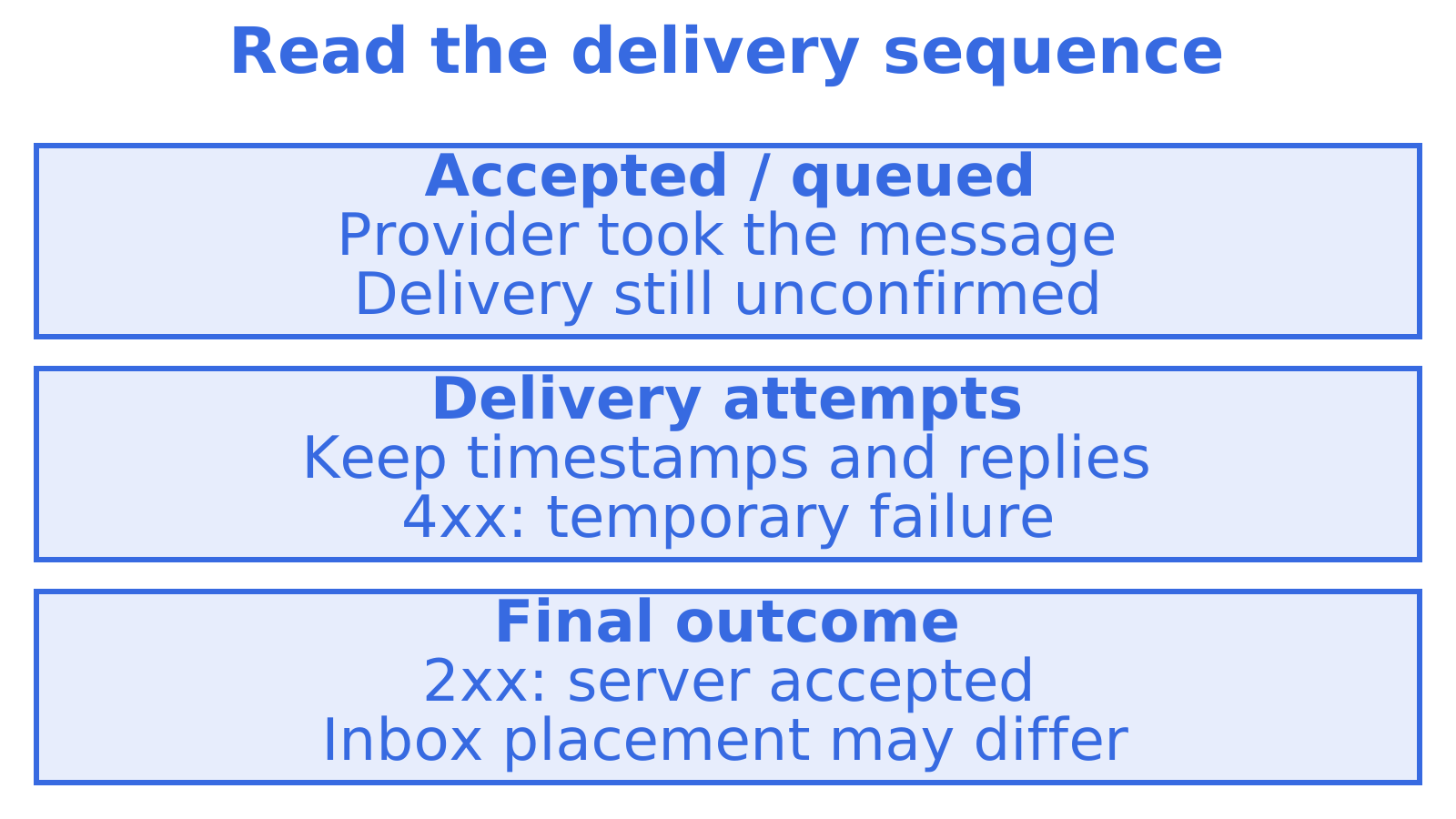
An email delivery log is a per-message record of what happened after your app or agent asked for an email to be sent: when it was accepted, each delivery attempt, the response from the recipient’s server, and the final outcome. A good one answers “did it arrive, and if not, why?” without you guessing. This guide covers what to record, how to read the status labels and SMTP codes, how to export and analyse logs, and how to make them usable by software, including AI agents.
TL;DR
- A delivery log is only useful if it shows the whole event sequence for each message, not just a final label such as “failed”.
- Keep “accepted” and “delivered” as separate states. A successful API response means your provider took the message, not that it reached an inbox.
- Store the full SMTP reply, the enhanced status code and the provider’s text as separate fields. 4xx usually means retry later, 5xx usually means stop and fix.
- Track inbound and outbound events separately, especially for agents that both read and send mail.
- Export to CSV or stream by webhook so analysis happens outside the dashboard.
Table of Contents
- What a delivery log actually is
- The event lifecycle, step by step
- Reading SMTP codes in your logs
- What a good log record contains
- Two layers: individual events and aggregates
- Exporting and analysing email logs
- Making logs safe for AI agents to use
- Our perspective
- Give your agent a mailbox to test with
- FAQ
- Sources
What a delivery log actually is
Think of it as a flight recorder for each message. Every email gets an identifier, and every step it passes through adds a timestamped event against that identifier.
Providers name the steps differently. Cloudflare’s Email Service documents statuses such as sent, delivered, delivery failed, rejected and failed, and its activity log also exposes SPF, DKIM and DMARC results, attempts, timestamps and bounce reason codes. SendGrid, as noted in the same research, uses a longer list: received, dropped, processed, delivered, deferred, bounced and blocked. The vocabulary changes, but the shape does not: submission, processing, one or more attempts, then a terminal outcome.
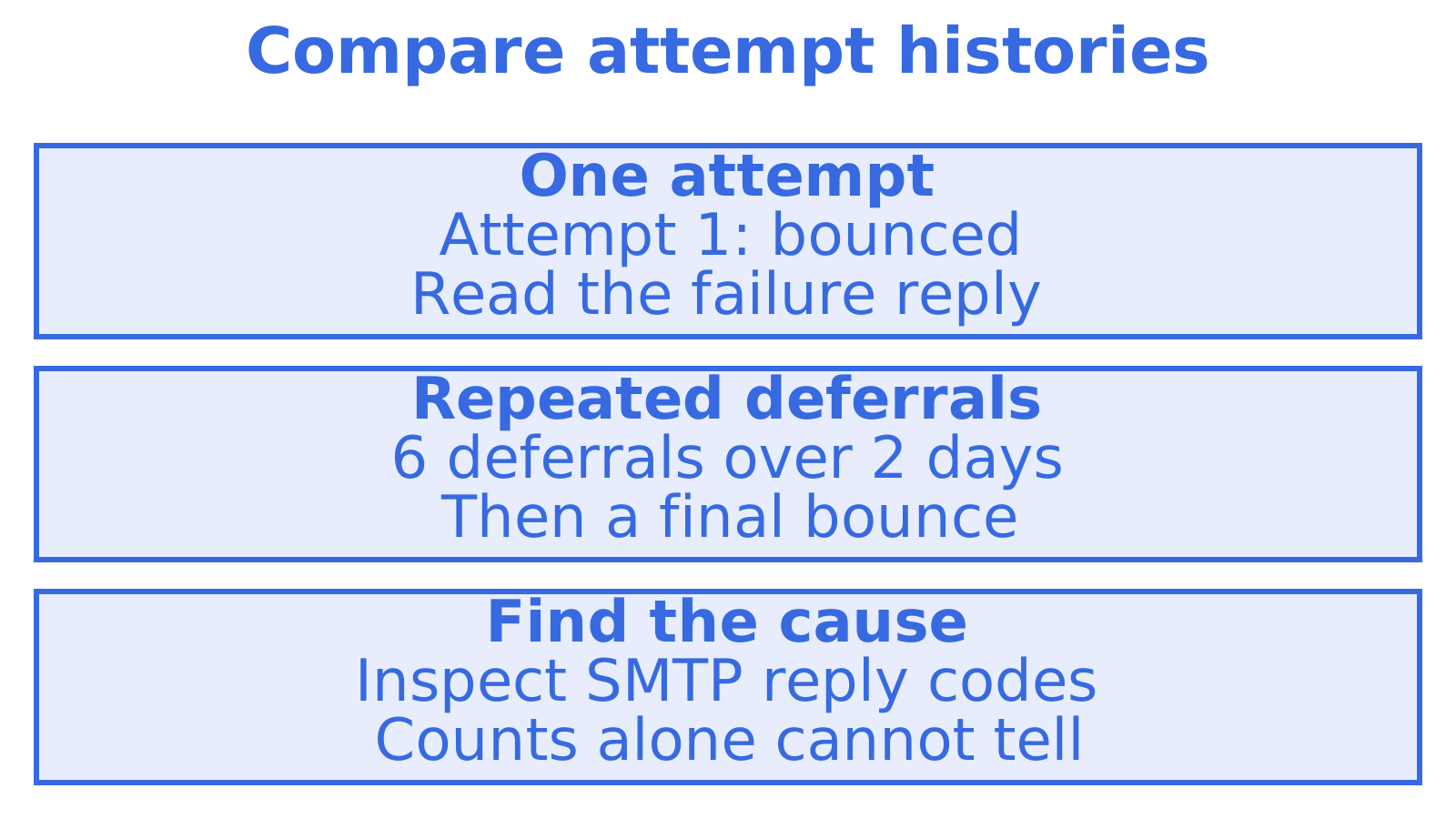
A log that records only the terminal state hides the story. A message that shows “bounced” after one attempt is a different problem from one that was deferred six times over two days and then bounced. The first is probably a bad address. The second suggests the recipient’s server was throttling or greylisting you.
The event lifecycle, step by step
Here is a practical model. Map your provider’s labels onto it and you can compare any two systems.
| Stage | What it means | What to check |
|---|---|---|
| Accepted / queued | Your provider took the message and validated it | Did the API return an ID? Was it rejected up front for a bad sender or suppressed recipient? |
| Processing | Headers signed, routing chosen, content scanned | Which sending route or domain was picked? |
| Attempted | A connection was made to the recipient’s mail server | Timestamp, server hostname, SMTP reply |
| Deferred | Temporary failure (4xx), the provider will retry | Reply text, number of attempts, next retry time |
| Delivered | The recipient’s server accepted the message (2xx) | Timestamp and server response |
| Bounced / failed | Permanent failure (5xx) or retries exhausted | Full reply, enhanced code, whether the address is now suppressed |
| Engagement | Opens, clicks, complaints | Treat as signals, not proof of delivery |
Accepted is not delivered
This is the distinction that trips up most teams. A provider may mark a message as sent or accepted once it has queued or relayed it. Cloudflare’s documentation draws the line this way: delivered means the recipient’s mail server accepted the message. Even then, “delivered” is not inbox placement. The message can still land in a spam folder.
In code, that means your database should hold at least two states, not a single boolean like email_sent = true. If your agent tells a customer “I’ve sent the invoice” the moment the API returns 200, it is claiming something the log cannot yet support.
Reading SMTP codes in your logs
Every attempt ends with a reply from the receiving server. The first digit tells you what to do next.
- 2xx: success.
- 4xx: a temporary condition. The list of SMTP return codes describes it as an error that may clear, so the action can be requested again.
- 5xx: a permanent negative reply. The sender should not repeat the exact same request.
Most bounces also carry an enhanced status code in the form class.subject.detail, such as 5.1.1. The IANA registry of enhanced status codes is the standards reference. The first digit repeats the success, temporary or permanent class, and the rest narrow it down to addressing, mailbox, or policy causes.
A short field guide to common bounces
| Code | Typical meaning | Usual action |
|---|---|---|
| 4.2.2 | Recipient’s mailbox is full | Retry later, then give up after your retry window |
| 4.7.x | Throttled or greylisted, or a temporary policy block | Slow down, retry with backoff |
| 5.1.1 | Recipient address does not exist | Suppress the address, do not retry |
| 5.7.x | Policy or authentication rejection | Check SPF, DKIM, DMARC and sender reputation before resending |
The meanings above follow the standard classes. Individual servers word their replies differently, so always keep the original text. For a longer treatment, see our guide to RFC-backed bounce reason codes and automation rules and the bounce handling guide for email APIs and webhooks.
Authentication failures are their own category
A 5.7.x rejection is rarely fixed by retrying. Check whether SPF, DKIM and DMARC pass for the sending domain, and whether your DNS records match the route actually used. Our SPF, DKIM and DMARC setup guide walks through the records, and this five-step SPF, DKIM and DMARC walkthrough is a useful second reference when you are diagnosing a specific failure. If you are tightening policy, read how to enforce SPF, DKIM and DMARC safely under RFC 9989 first, so you don’t block your own legitimate mail.
What a good log record contains
When you design a log, or judge one you are buying, check for these fields on every message event:
- Message ID and your own correlation ID, so you can join the log to a user, ticket or agent run.
- Timestamp with timezone for every event. Store UTC, display local time. For Australian teams, that avoids confusion when AEST and AEDT shift with daylight saving.
- Sender, recipient and route: which domain or provider actually carried the message.
- Normalised status: a small, fixed set of values your code can switch on.
- SMTP reply code, enhanced status code and raw provider text, kept as three separate fields.
- Attempt count and next retry time.
- Authentication results for SPF, DKIM and DMARC.
- Direction: inbound or outbound.
The research behind this guide is blunt about point 5: keep the complete SMTP response, not only a friendly error label. The class digit decides whether to retry, suppress, fix authentication or escalate to a person, so it cannot be thrown away.
Inbound and outbound are different logs
It is tempting to fold everything into one “status” column. Don’t. Receiving a message, parsing it, handing it to a handler, forwarding it and sending a reply are separate events with separate failure modes. Oracle’s email logging guide separates accepted submissions from relayed delivery and engagement, and Cloudflare documents distinct inbound routing outcomes such as forwarded, handled, dropped and rejected.
This matters most for agents. A support agent that reads a customer’s email and replies has at least four things that can go wrong: the inbound message never arrived, it arrived but was not parsed, the agent produced no reply, or the reply bounced. One status field cannot tell those apart.
Two layers: individual events and aggregates
Per-message events are for diagnosis. Aggregates are for noticing that something has changed. You want both.
- Event layer: “Why did this message to this person fail at 2:14 pm?”
- Aggregate layer: “Our deferral rate to one large mailbox provider tripled since this morning.”
The aggregate view catches problems no single log line will show, such as a reputation dip, a misconfigured route or a sudden complaint spike. If you are building one, our post on six API-backed panels for an email metrics dashboard lays out what to chart, and the email deliverability monitoring guide for technical teams covers thresholds and alerting.
Exporting and analysing email logs
A dashboard is fine for one-off lookups. Real analysis needs the data in your hands. There are three common routes.
CSV export
Most dashboards let you pull a date range as CSV. Mailgun’s help page, for instance, says its logs table can be exported as a CSV file and that retention is up to 30 days depending on plan. That second point is the catch: if you only export when something breaks, the evidence may already have expired. Decide your retention needs early, and export or stream on a schedule if a regulator, customer contract or incident review might ask for older records.
Once you have the CSV, a few steps cover most investigations:
- Filter to the terminal status (bounced, failed, rejected).
- Group by enhanced status code, then by recipient domain.
- Look for a single code or domain that accounts for most of the failures.
- Compare the first-attempt time with the final-event time to spot long deferral chains.
Webhooks and streaming
Exporting after the fact is slow. Webhooks or server-sent events push each event to your own system as it happens, so you can write to your own warehouse and keep records for as long as you choose. They also let software react immediately, for example by suppressing an address the moment a 5.1.1 arrives.
Raw server logs
If you run your own mail server, the logs are text files. A practical walkthrough from CubePath shows how to analyse Postfix and Dovecot mail logs with a few grep patterns, since those servers record every connection, delivery attempt and login. It is a good option when you control the infrastructure, though you give up the normalised fields an API provides.
Making logs safe for AI agents to use
An agent that handles email will read its own logs. Asking a language model to guess from a sentence like “550 mailbox unavailable” whether to retry is risky. Give it structured fields instead and let deterministic rules make the call.
A workable pattern:
- Store
status,smtp_code,enhanced_code,provider_text,retryableandauth_resultsas separate fields. - Let code decide: 4xx retries with backoff, 5xx suppresses the address, authentication failures page a human.
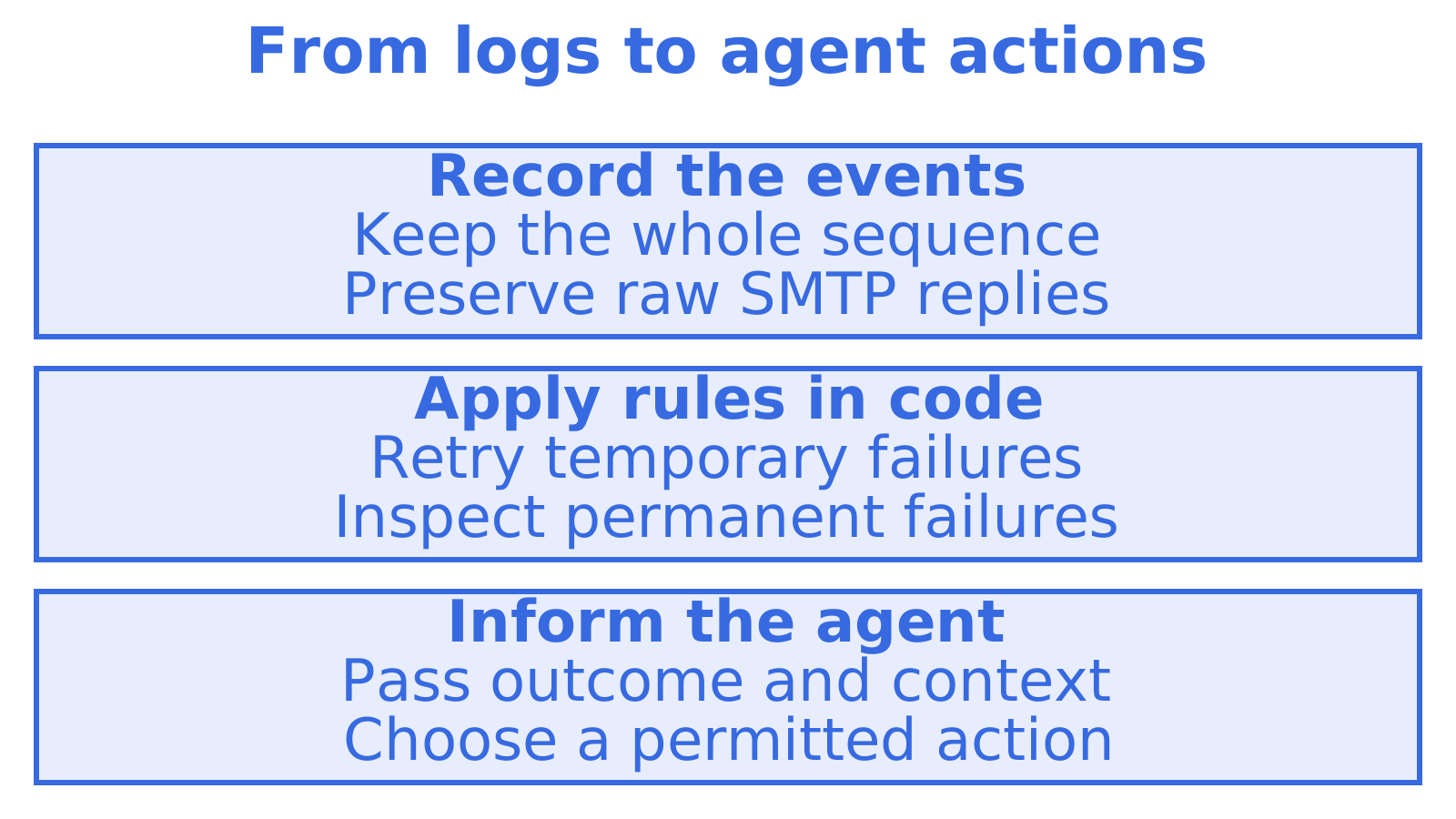
- Pass the agent the outcome and context (“address suppressed because mailbox does not exist”) and let it decide what to tell the user or what to do next.
Our email retry strategy in five steps covers backoff and retry limits. For teams that pass bounce details and normalised status fields into automated follow-up, such as outbound sequences, this cold email outreach guide shows the deliverability side from a sales angle.
Our perspective
We build email infrastructure for agents, so we read a lot of delivery logs, and our view is simple: a log should be an interface for software first and a screen for humans second.
Most of the pain we see comes from three habits. Teams treat “accepted by the API” as “delivered”. They keep a friendly error label and discard the raw SMTP reply. And they give an agent a prose message and hope it makes the right call. All three are cheap to avoid at the start and expensive to untangle after an incident.
Sendmux provides team-level delivery logs and metrics, live received-message notifications through the Mailbox API event stream, inbound event notifications through webhooks, and search across your team’s mailboxes. We would rather give you honest, separate fields than a tidy single status that hides the cause.
If you take one thing from this guide, make it this: log the whole sequence, keep the codes raw, and decide retry rules in code.
Give your agent a mailbox to test with
The quickest way to see inbound events in a log is to have a real inbox receiving real mail. A self-registered agent can receive and read mail in its assigned mailbox, search messages and read conversation threads. Sending unlocks once a human owner joins and approves, so the person whose name the mail goes out under stays in control. Start at myagent.mx, or see the agent inbox API for custom domains and per-mailbox keys.
For a deeper look at how we approach this topic, read our email delivery logs guide for developers.
FAQ
How do I check whether an email was delivered?
Open your provider’s delivery log and find the message by recipient, ID or time. Look for a delivered event with a 2xx response from the recipient’s server. If you only see accepted or queued, delivery has not yet been confirmed, and a deferred or bounced event will include the reason.
What is the difference between a soft and a hard bounce?
A soft bounce comes from a 4xx reply and is treated as temporary, so the sender retries. A hard bounce comes from a 5xx reply and is permanent until the cause is corrected, such as a non-existent address. Keep the enhanced status code as well, because it shows whether the cause is addressing, mailbox or policy.
How long should I keep email logs?
That depends on your provider and your own obligations. Some providers keep events for only a limited time, Mailgun’s help page mentions up to 30 days depending on plan, so export or stream events to your own storage if you need a longer record. Check any legal or contractual retention requirement that applies to your business.
Can I export email logs to CSV?
Many dashboards offer CSV export for a chosen date range. For ongoing analysis, webhooks or event streaming into your own database are more reliable than manual exports, since they don’t depend on a retention window.
Sources
- Activity log, Cloudflare Email Service docs
- Email Log Searching, Oracle Cloud Infrastructure
- SMTP Enhanced Status Codes, IANA
- List of SMTP server return codes, Wikipedia
- Logs, Mailgun help
- How to Analyze Postfix and Dovecot Mail Logs on Ubuntu, CubePath Docs
Recommended
Give an agent its own address
Sendmux is the Email Inbox API for AI Agents.