 myagent.mxBLOG
apis & sending · proton mail smtp
Stop Pasting Your Account Password: Proton Mail SMTP Tokens vs Bridge
Learn when to use Proton Mail direct SMTP tokens for servers and when to use Bridge for desktop clients. Never use your regular account password.
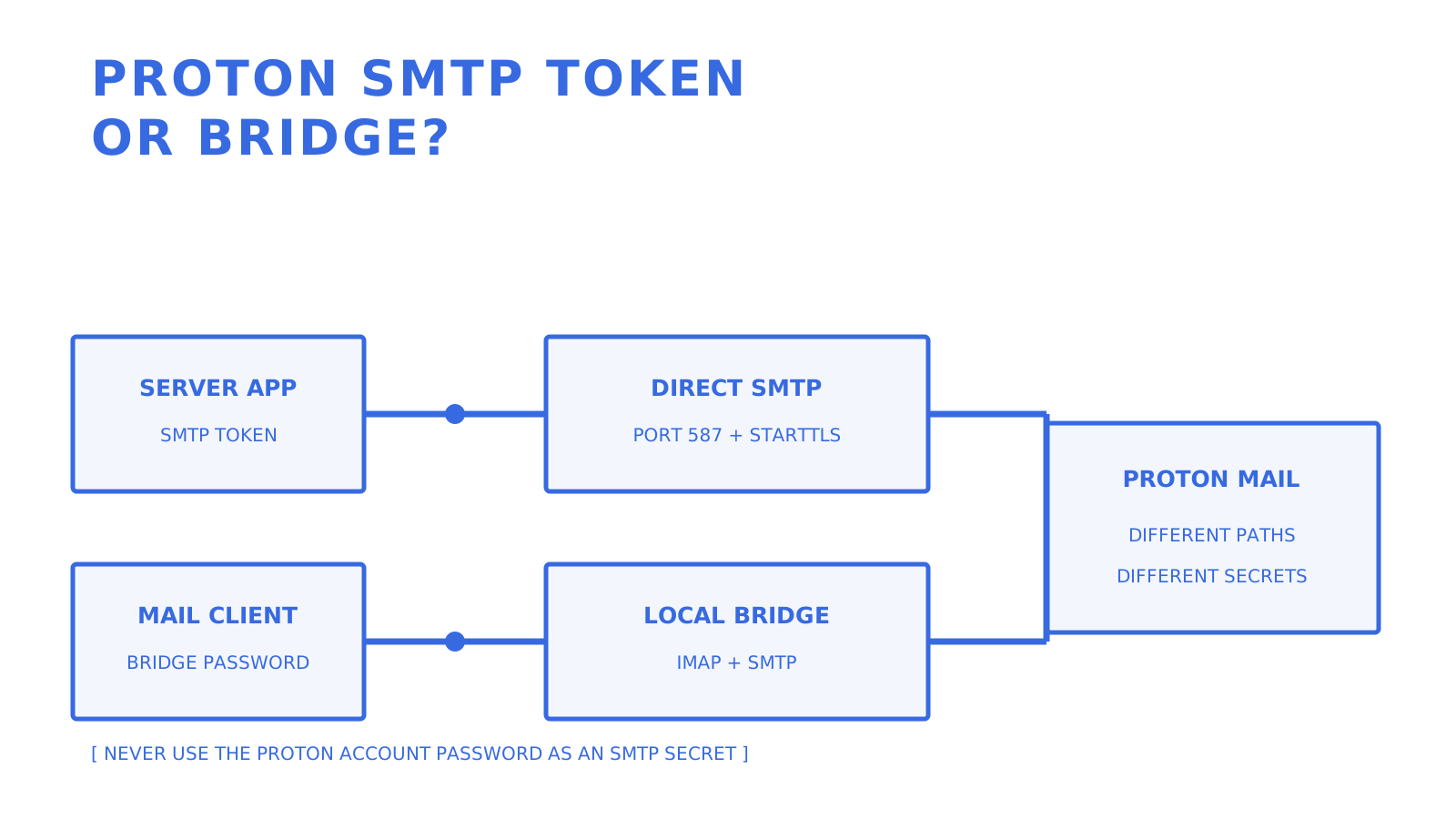
Use direct SMTP submission (smtp.protonmail.ch with an SMTP token) when a server or app needs to send mail on your behalf, provided you’re on a paid Proton plan with a custom domain. Use Proton Mail Bridge when you’re configuring a desktop email client, since it runs local IMAP and SMTP endpoints and handles Proton encryption on that device. Messages to non-Proton recipients are not end-to-end encrypted by default. Either way, your username is always your full email address; the password is either an SMTP token or a Bridge-generated mailbox password, never your Proton account password.
TL;DR
- Using direct SMTP requires a verified custom domain and a paid Proton plan, but messages are not end-to-end encrypted in transit through Proton’s relay.
- Proton Mail Bridge decrypts messages locally and preserves Proton’s encryption behavior for desktop clients, but it must be running continuously on your machine for access.
- SMTP tokens are generated via Proton web settings, should be named per application, and must never be confused with your Proton account password.
- Bridge setup involves installing the app, signing in, and copying a unique mailbox password, which your mail client uses instead of your Proton login.
- Both methods require proper configuration and troubleshooting, especially when authentication issues occur, which usually stem from incorrect passwords, ports, or Bridge not running.
Table of Contents
- Direct SMTP or Bridge: which one do you need?
- How do I generate a Proton SMTP token?
- How do I set up Proton Mail Bridge for a desktop client?
- SMTP settings reference for Proton Mail
- Why does Proton Mail keep rejecting my password?
- What are the security and plan trade-offs?
- Which Proton method fits your use case?
- What should you actually run in production?
- Sources
- FAQ
Direct SMTP or Bridge: which one do you need?
The right choice depends entirely on what’s doing the sending. A server, a SaaS app, or an automated notification system needs direct SMTP submission. That means authenticating with an SMTP token against smtp.protonmail.ch, and it only works if you’re on a paid plan with a verified custom domain attached to your Proton account.
A desktop mail client, on the other hand, needs Proton Mail Bridge. Bridge runs quietly in the background on your machine and exposes a local SMTP and IMAP server that Outlook, Thunderbird, or Apple Mail can connect to as if it were any other provider.
- Direct SMTP: built for headless, automated sending; requires custom domain and paid plan; messages aren’t end-to-end encrypted in transit through the relay.
- Bridge: built for interactive desktop use; keeps end-to-end encryption because decryption happens locally; requires Bridge to be running on that device.
- Token rotation: direct SMTP tokens are easy to revoke individually per client; Bridge passwords are tied to the mailbox and regenerate per device pairing.
Proton says its mail service is not designed for bulk mailing and applies sending limits, so confirm that the documented limits fit the application’s traffic before choosing either path.
How do I generate a Proton SMTP token?
SMTP submission starts in Proton’s web settings by generating a token for one active custom-domain address.
- Log into Proton Mail on the web and go to Settings → All Settings → IMAP/SMTP, then find the SMTP tokens section.
- Give the token a clear name that identifies the app or server using it, for example “invoicing-server” or “crm-notifications”.
- Choose the custom-domain email address the token will authenticate as.
- Click Generate, then confirm with your Proton account password when prompted.
- Copy the token immediately. Proton shows it once, and there’s no way to retrieve it again later.
- Enter the token as the password field in your app’s SMTP configuration, alongside the full email address as the username.
Pro Tip: Create a separate token for every application or server, even if they send from the same address. That way, if one integration gets decommissioned or compromised, you revoke that single token without touching anything else.
Never paste your actual Proton account password into an app’s SMTP field. If a client only offers one password field, that field wants the token, not your login credentials. Delete any token tied to a retired client from the SMTP tokens list, and replace a token before deleting the old one when you need to rotate it without downtime.
How do I set up Proton Mail Bridge for a desktop client?
Bridge setup installs a local adapter that must be running and signed in while the desktop mail client connects.
- Download Bridge for macOS, Windows, or Linux from Proton’s official site and install it.
- Open Bridge and sign in with your regular Proton account credentials.
- Add your mailbox inside Bridge if it isn’t already listed, then open Mailbox details to find your Bridge-generated mailbox password.
- Copy that password. It’s different from your Proton account password and different from any SMTP token.
- In your desktop client (Thunderbird, Outlook, Apple Mail), create a new account using your full email address as the username and the Bridge password as the password.
Bridge defaults to exposing SMTP on 127.0.0.1:1025 and IMAP on 127.0.0.1:1143, with Bridge protecting the local connection using STARTTLS or SSL by default.
- If another application is already using those ports, change Bridge’s port assignments in its settings and update your client to match.
- For local testing over TLS, export Bridge’s certificate rather than disabling certificate validation outright.
- Bridge must stay running for your mail client to send or receive anything, so treat it as a background service rather than a one-off tool.
SMTP settings reference for Proton Mail
Here’s the compact reference worth bookmarking, since the two setups look similar but use entirely different credentials.
| Setting | Direct SMTP submission | Proton Mail Bridge |
|---|---|---|
| Host | smtp.protonmail.ch | 127.0.0.1 |
| Port | 587 | 1025 (configurable) |
| Encryption | STARTTLS | STARTTLS or SSL, as configured in Bridge |
| Auth mechanism | PLAIN or LOGIN | Use the client settings shown by Bridge |
| Username | Full custom-domain address | Full email address |
| Password | SMTP token | Bridge mailbox password |
For direct SMTP, configure the client for STARTTLS on port 587. For Bridge, copy the host, port, encryption mode, username, and mailbox password shown by Bridge instead of assuming the direct-SMTP settings apply locally.
Why does Proton Mail keep rejecting my password?
Nearly every setup failure traces back to one of a handful of causes, and Proton’s own invalid password guidance covers most of them directly.
- “Invalid password” on Bridge: you’ve likely entered your Proton account password instead of the Bridge mailbox password from Mailbox details.
- “Invalid password” on direct SMTP: you’ve probably pasted your account password or an old, revoked token instead of a current SMTP token.
- ECONNREFUSED or “port in use”: Bridge isn’t running, or another process has claimed port 1025; restart Bridge or reassign its port.
- Authentication rejected on smtp.protonmail.ch: confirm the address you’re authenticating as is actually on a custom domain tied to a paid plan, since free accounts can’t use this path at all.
- TLS/certificate errors on localhost: export Bridge’s certificate for a proper trust chain rather than disabling verification.
Pro Tip: Bridge passwords and SMTP tokens are not interchangeable in either direction. If you’re getting authentication failures, the fastest fix is often to double-check which type of credential the field is actually expecting.
What are the security and plan trade-offs?
Direct SMTP submission through smtp.protonmail.ch is not end-to-end encrypted, although Proton stores sent mail with zero-access encryption. Bridge decrypts mail locally for the desktop client; mail between Proton accounts remains end-to-end encrypted, while mail to non-Proton recipients is not end-to-end encrypted by default unless separate encryption is configured.
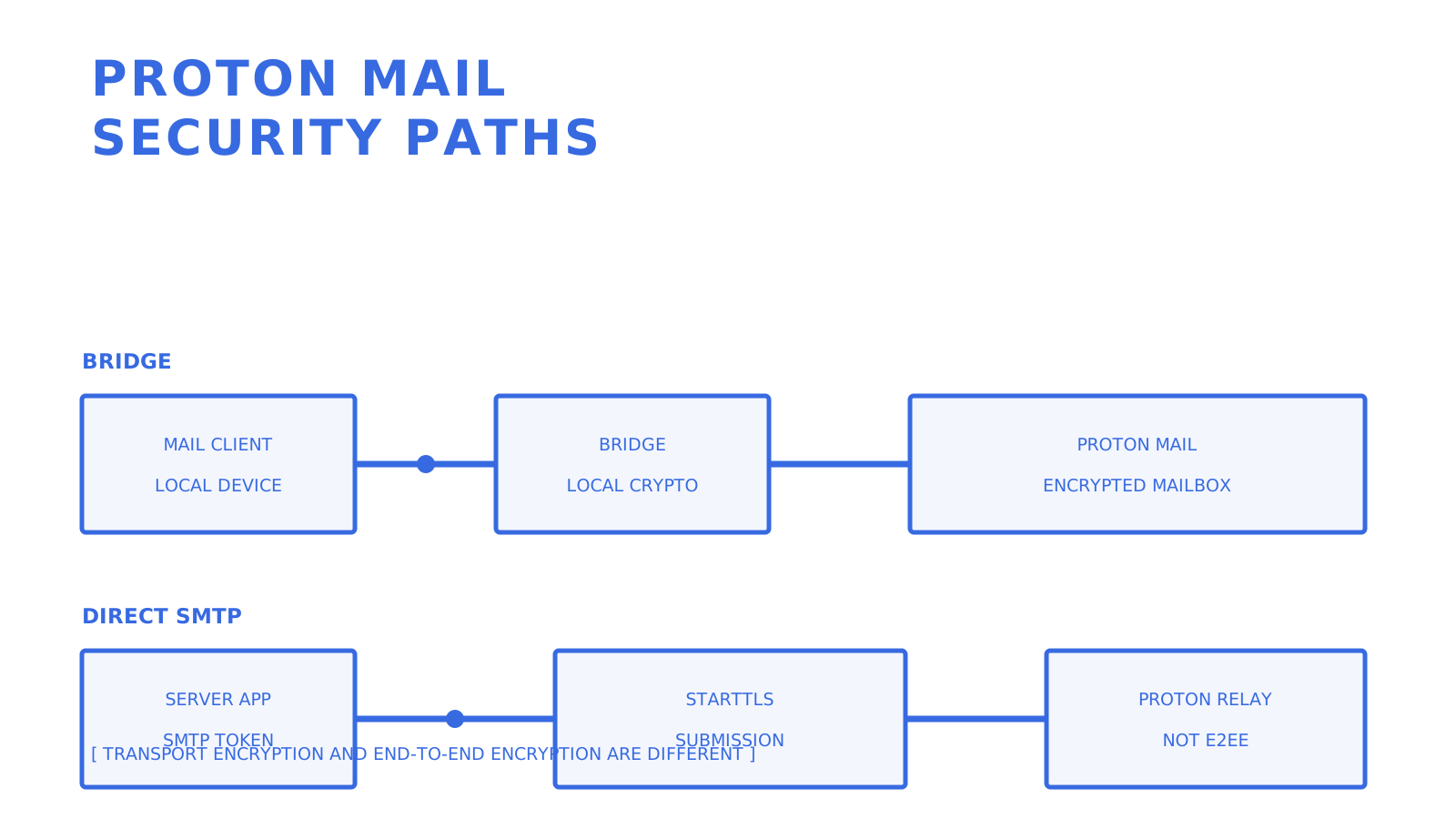
Both paths require a paid Proton plan; direct SMTP also requires a verified custom domain. Treat SMTP tokens as disposable credentials: name them by client, rotate them on a schedule, and revoke anything tied to a decommissioned integration. Keep the custom domain’s SPF, DKIM, and DMARC records correct, then monitor the actual SMTP responses and Proton sending limits; authentication does not guarantee acceptance or inbox placement.
Which Proton method fits your use case?
Website contact forms, invoicing systems, and any server-side app sending transactional mail belong on direct SMTP with a token, provided your DNS records and bounce monitoring are in place. Desktop clients like Thunderbird or Outlook, especially where you want full end-to-end encryption preserved locally, belong on Bridge.
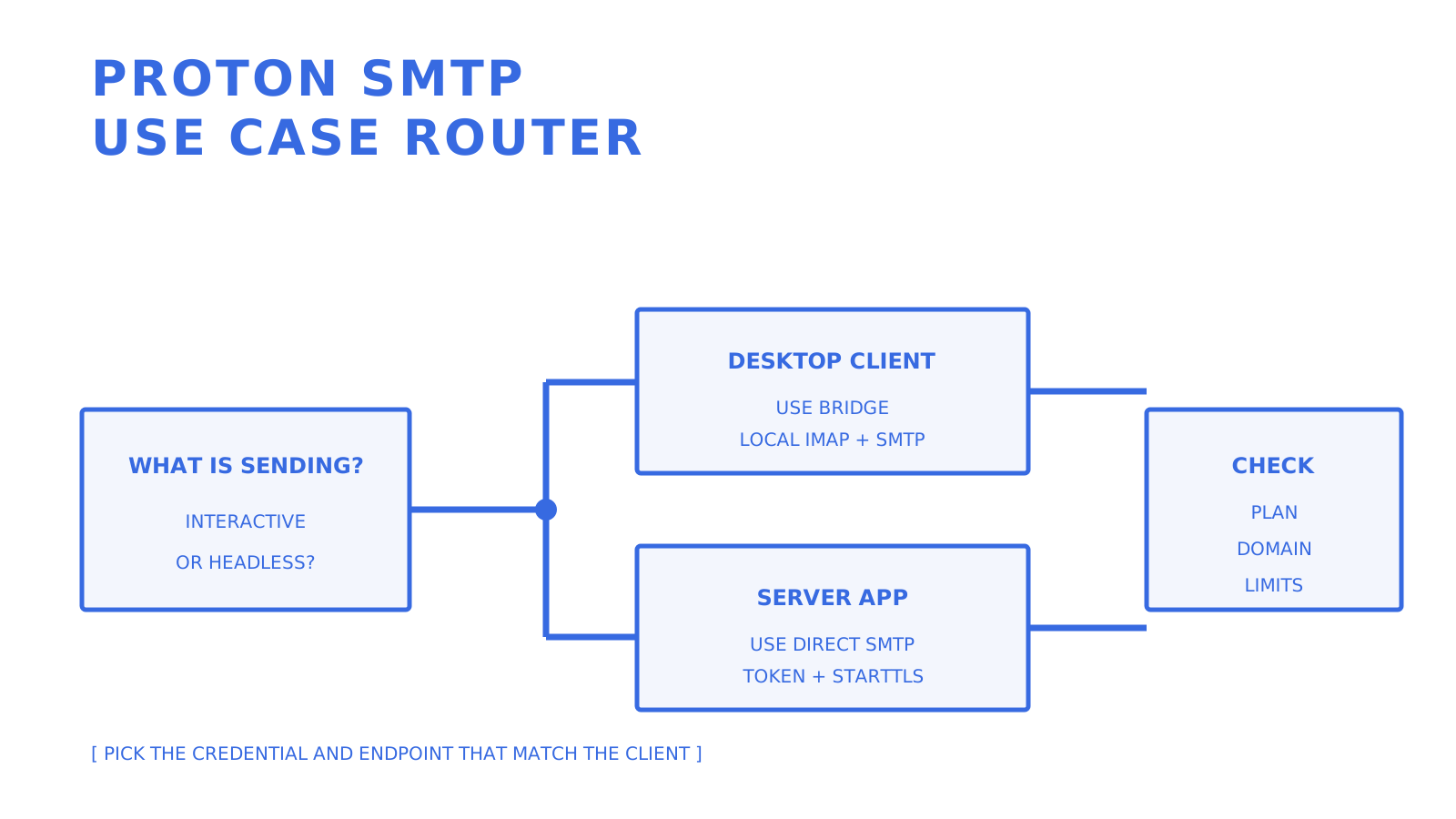
Use Bridge for a desktop mail client running on the same device. Use direct SMTP submission for a business application or device that needs send-only access, then check Proton’s sending limits before relying on it for sustained automated traffic.
What should you actually run in production?
If a server or business application needs to send, use direct SMTP submission with a separately named token. Bridge is intended for a desktop mail client on the same device. Monitor SMTP responses and sending-limit warnings, and revoke a token when its client is retired.
Proton states that Proton Mail is not designed for bulk mailing. If the application’s required traffic exceeds the account’s sending limits, choose a service whose documented sending model matches that workload.
Sources
- Proton SMTP submission
- Proton Mail Bridge IMAP, SMTP, and POP3 support
- Proton Mail Bridge default ports
- Proton Mail Bridge password guidance
- Proton Mail sending limits
- Proton transparency report
FAQ
What Is the SMTP Host Name for Proton Mail?
For direct SMTP submission, use smtp.protonmail.ch on port 587 with STARTTLS. Proton Mail Bridge instead exposes a local SMTP endpoint on 127.0.0.1, using port 1025 by default unless you change it.
Is Proton Mail IMAP or POP3?
Proton Mail Bridge supports IMAP for incoming mail and SMTP for outgoing mail. Proton explicitly does not offer POP3 support.
Why Is Proton Mail Sometimes Blacklisted?
A receiving system can reject or block mail for several reasons, including its own reputation and anti-abuse policy. Check the exact SMTP response, authenticate your custom domain, and follow Proton’s sending limits; SPF, DKIM, and DMARC do not guarantee acceptance or removal from a blocklist.
What Is the Proton Mail Controversy People Mention?
Discussions usually concern privacy, legal requests, and what account information Proton can be compelled to provide under Swiss law. Proton publishes a transparency report and law-enforcement guidance; those questions are separate from SMTP token and Bridge configuration.
Can I Use My Proton Account Password for SMTP?
No. Direct SMTP submission uses a generated SMTP token, while a desktop client connected through Bridge uses the mailbox password shown in Bridge. Your Proton Account password is used to sign in to Proton, not as either client credential.
Give an agent its own address
Sendmux is the Email Inbox API for AI Agents.