 myagent.mxBLOG
apis & sending · microsoft graph send email
5 Step Checklist for Developers Sending Email With Microsoft Graph
Examples and working code for sending email with Microsoft Graph. C#, Python and raw HTTP snippets, a 5 step auth and mailbox checklist, attachment rules...
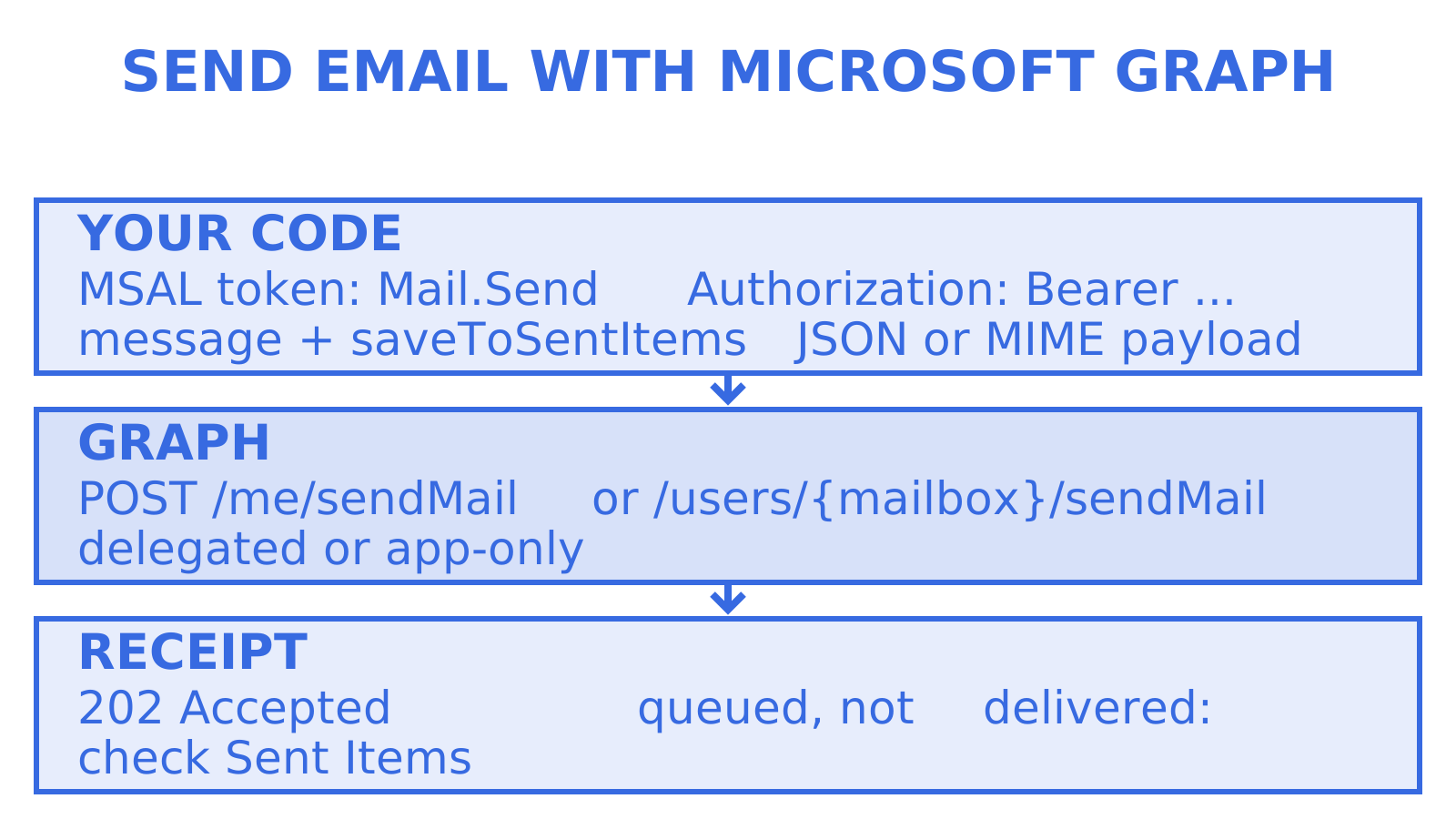
To send email with Microsoft Graph, call POST /me/sendMail for a signed-in user with the delegated Mail.Send scope, or POST /users/{mailbox}/sendMail for app-only flows using the application permission Mail.Send. Both accept JSON or MIME payloads and attachments via fileAttachment with base64-encoded contentBytes, and both return 202 Accepted on success, which confirms Graph took the request, not that the message landed.
TL;DR
- Sending mail requires explicit
Mail.Sendpermission, with delegated flows usingPOST /me/sendMailand app-only flows usingPOST /users/{mailbox}/sendMail. - Authentication involves token acquisition through MSAL or direct OAuth, with app registration needing specific permissions and potentially application access policies for mailbox scoping.
- Attachments in Graph can be added as base64-encoded
contentBytesin JSON or as raw MIME messages, but improper encoding or size can cause errors. - For shared mailboxes and send-as scenarios, additional Exchange Online permissions like Send As or Send on Behalf are necessary, and testing confirms sender identity via Sent Items.
- A
202 Acceptedresponse only queues the email; delivery success depends on subsequent processing, so error codes likeSendAsDeniedor base64 issues need careful handling.
Working code examples for delegated and app-only flows
The fastest way to get mail moving is to pick your auth flow first, then copy the matching snippet.
For a delegated flow, where a signed-in user sends as themselves, authenticate with MSAL using Authorization Code with PKCE (web and mobile apps) or Device Code (CLI tools), then call /me/sendMail:
- Acquire a token scoped to
Mail.Sendthrough MSAL’sacquireTokenInteractiveoracquireTokenByDeviceCode. - POST the token as a bearer header to
https://graph.microsoft.com/v1.0/me/sendMail. - Body shape: a
messageobject withsubject,body(contentTypeHTMLorText),toRecipients, and optionallysaveToSentItemsset totrueorfalse.
For app-only sending, typically from a backend service sending as a shared or service mailbox, use client credentials against https://login.microsoftonline.com/{tenant}/oauth2/v2.0/token with scope https://graph.microsoft.com/.default, then call POST /users/{mailbox}/sendMail with the same JSON body shape.
In C#, the GraphServiceClient wraps this as graphClient.Users["{mailbox}"].SendMail.PostAsync(requestBody), where requestBody is a SendMailPostRequestBody holding the message and a SaveToSentItems flag. In Python, the equivalent through the Microsoft Graph SDK is await user_client.me.send_mail.post(request_body), with request_body built from the SendMailPostRequestBody model.
Raw HTTP is worth knowing even if you use an SDK, because it shows exactly what’s on the wire: a Content-Type: application/json header, a bearer token, and a body with message and saveToSentItems as siblings. A correct call returns 202 Accepted with an empty body, which is where many developers stop checking too early, as detailed in the sendMail API reference.
Authentication, scopes and mailbox scoping checklist
Before writing any code, settle whether you’re building a delegated or app-only integration, because the infrastructure setup diverges early.
- Register the app in Microsoft Entra and note the tenant ID and client ID.
- For delegated sending, add
Mail.Send(andMail.Send.Sharedif the signed-in user sends from a shared mailbox they have access to), requestoffline_accessif you need refresh tokens, and use PKCE for any public client. - For app-only sending, add the Microsoft Graph application permission
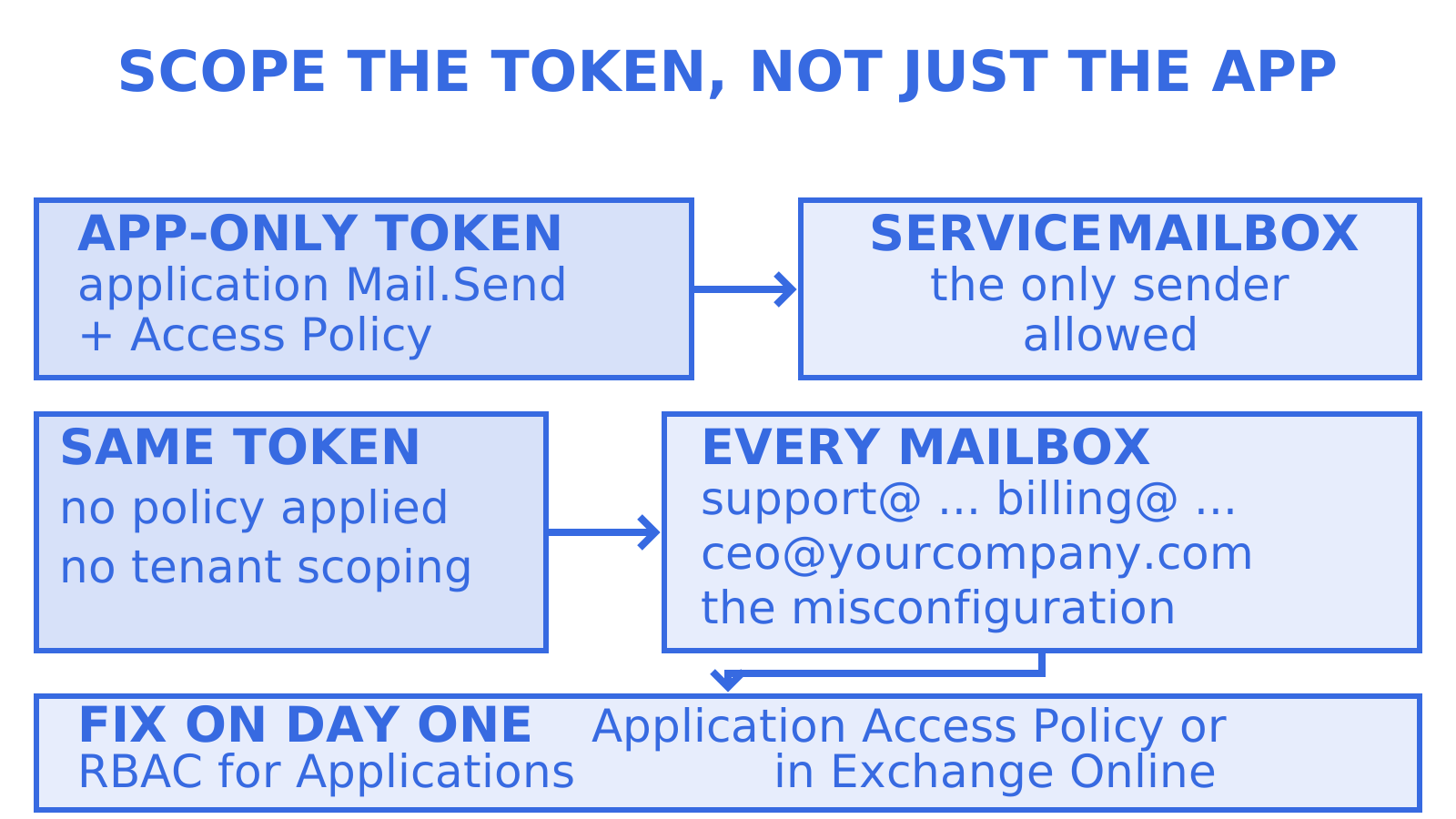
Mail.Sendand have an admin grant tenant-wide consent. - Restrict which mailboxes the app-only token can actually send from using an Application Access Policy or RBAC for Applications in Exchange Online, since application
Mail.Sendalone has no scoping and can otherwise address every mailbox in the tenant, a point the Microsoft 365 OAuth guidance calls out directly. - Choose a credential type: client secret for quick testing, certificate for anything running in production.
Pro Tip: Use certificate-based authentication instead of client secrets for any app-only integration with broad Mail.Send access, and rotate certificates on a schedule rather than waiting for an expiry alert.
Skipping step four is the single most common misconfiguration teams run into: the app technically works in testing, then someone discovers it can send as the CEO’s mailbox in production.
Attachments and MIME: formats, limits and base64 pitfalls
Graph supports two attachment paths, and which one you need depends on how much control you want over the raw message.
- The JSON approach adds an
attachmentsarray to the message, each item typed as#microsoft.graph.fileAttachmentwithcontentBytesset to the base64-encoded file content, plus anameandcontentType. - The MIME approach skips the structured message object entirely: you build a full RFC-822 message, base64-encode the whole thing, and POST it as the raw body, which is the route to take when you need exact header control or S/MIME signing, as covered in the guidance on sending MIME messages.
Most malformed-attachment errors trace back to encoding the file path or a data URI prefix instead of the raw bytes. Strip any data: prefix before encoding, and verify the base64 string decodes back to the original file size before you send, as the create-and-send guidance notes when it demonstrates the fileAttachment payload shape. Keep inline attachments modest in size and prefer uploading large files to a share and linking them where your mailbox tooling supports it, rather than inflating every message with megabytes of base64 text.
Personal accounts, shared mailboxes and sending-as scenarios
Personal Microsoft accounts (MSA) authenticate through the /common endpoint rather than a tenant-specific one, and still use the delegated Mail.Send scope once the user consents; /me/sendMail works the same way it does for a work account.
- Shared mailboxes are where most
SendAsDeniederrors originate: the app needs Graph permission, but the user or app identity also needs Send As or Send on Behalf (and sometimes Full Access) granted in Exchange Online, a two-layer requirement the guidance on sending as another user spells out explicitly. - Use
/me/sendMailwhen the signed-in user is the sender, and/users/{mailbox}/sendMailfor app-only calls or when deliberately sending as a different mailbox. - Before trusting a new integration, send a test message to a throwaway mailbox and check Sent Items to confirm both the sender identity and whether the copy actually saved where you expected.
Common errors, delivery semantics and troubleshooting
A 202 Accepted response only means Graph queued the request; it is not a delivery receipt, since Exchange Online still has to process, throttle and route the message afterwards, per the sendMail reference.
401or403responses usually mean the token lacks the right scope or admin consent was never granted; recheck the app registration’s granted permissions.SendAsDeniedmeans the Exchange-side permission is missing, not the Graph permission, so fix it in Exchange Online rather than Entra.ErrorMimeContentInvalidBase64Stringmeans the MIME or attachment payload wasn’t valid base64, usually from an extra prefix or line-wrapping issue.- For high-volume senders, check MailTips before sending to catch recipient-side constraints such as auto-replies or full mailboxes ahead of time, as the create-and-send documentation recommends.
Pro Tip: If you’re migrating off SMTP, remember plain SMTP typically doesn’t write to Sent Items, while Graph’s sendMail does by default unless you set saveToSentItems to false, so audit that behaviour before you cut over.
Agent mailboxes and why mailbox APIs matter
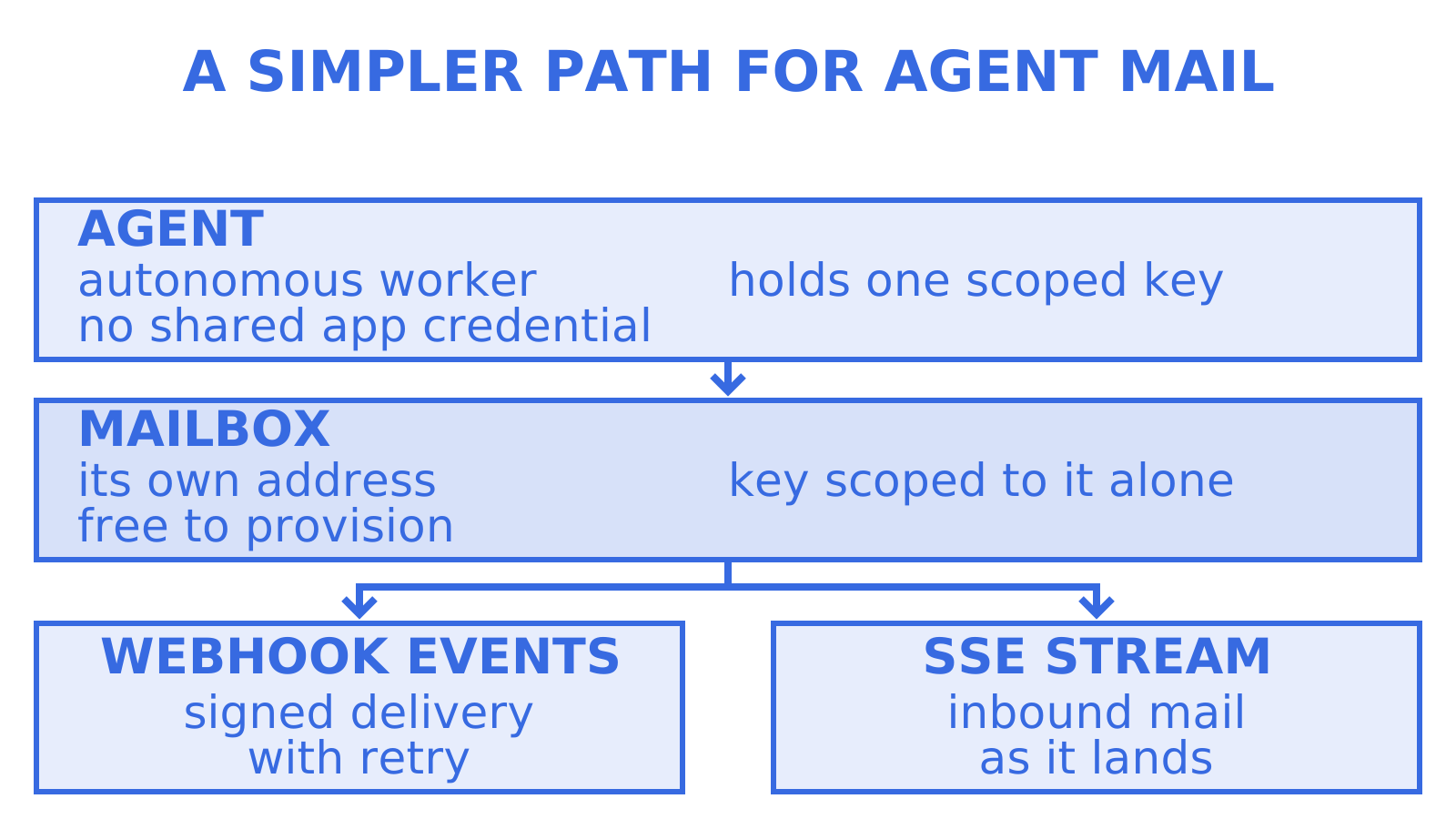
Everything above assumes you already have a mailbox to send from. For an autonomous agent, that’s often the harder problem: provisioning an inbox, scoping credentials, and wiring up events without a human doing the signing up each time. That’s the gap a Sendmux inbox is built around, handing an agent a working mailbox with scoped keys and webhook delivery instead of a shared Graph app credential everyone has to trust.
What developers get wrong about Graph email
The part of this setup developers underestimate isn’t the API call, it’s the permission model. Teams spend a week wiring up sendMail and then lose two more untangling why a shared mailbox returns SendAsDenied despite a correctly scoped Graph token, because the Exchange-side grant lives in a completely different console.
The conventional advice treats 202 Accepted as success and moves on. It isn’t. Treat it as a receipt, not a delivery confirmation, and build a habit of checking Sent Items or tenant delivery logs until you trust the pipeline.
If there’s one thing to prioritise first, it’s deciding delegated versus app-only before writing a line of code, because retrofitting mailbox scoping onto an over-permissioned app-only integration is far more painful than setting an Application Access Policy on day one.
A simpler path for agent mailboxes
When the job is giving an agent its own working inbox rather than wiring a human mailbox into an app registration, Sendmux takes a different route: scoped mailbox keys, webhook or Server-Sent Events delivery, and bring-your-own outbound routing across providers, all billed on usage rather than per seat or per mailbox. Start with a free mailbox at Myagent, or see the full platform at sendmux.ai/product. For managing the inbox once mail starts flowing, theNeedle is worth a look for prioritising what actually needs a reply.
FAQ
How do I use Microsoft Graph to get emails?
Call GET /me/messages or GET /users/{id}/messages with the delegated Mail.Read scope or application Mail.Read permission, which returns a JSON collection of message objects you can filter and page through.
Is Microsoft Graph still available?
Yes, Microsoft Graph is Microsoft’s current API for Outlook, Exchange Online and Microsoft 365 data, and it’s the recommended path over legacy protocols for new mail integrations, including sending as detailed in the sendMail reference.
Is there a way to automate sending emails?
Yes: automate sending through Microsoft Graph’s sendMail endpoint with either a delegated or app-only token, or continue using SMTP with OAuth2 (AUTH XOAUTH2) if your infrastructure still depends on it, per Microsoft’s SMTP OAuth guidance. Agent-based workflows that need a dedicated inbox rather than a shared app credential can also provision one through a Sendmux inbox.
How do I send an email from Microsoft?
Send from a Microsoft 365 or personal account by calling POST /me/sendMail with a valid access token carrying the Mail.Send scope, passing a JSON message object with recipients, subject and body.
Sources
Give an agent its own address
Sendmux is the Email Inbox API for AI Agents.