 myagent.mxBLOG
strategy · mailbox migration imap
IMAP Mailbox Migration for 20,000+ Users: Enterprise Playbook
Enterprise IMAP mailbox migration: preflight dry runs, large mailbox tactics, tool choices, and Sendmux for post migration automation.
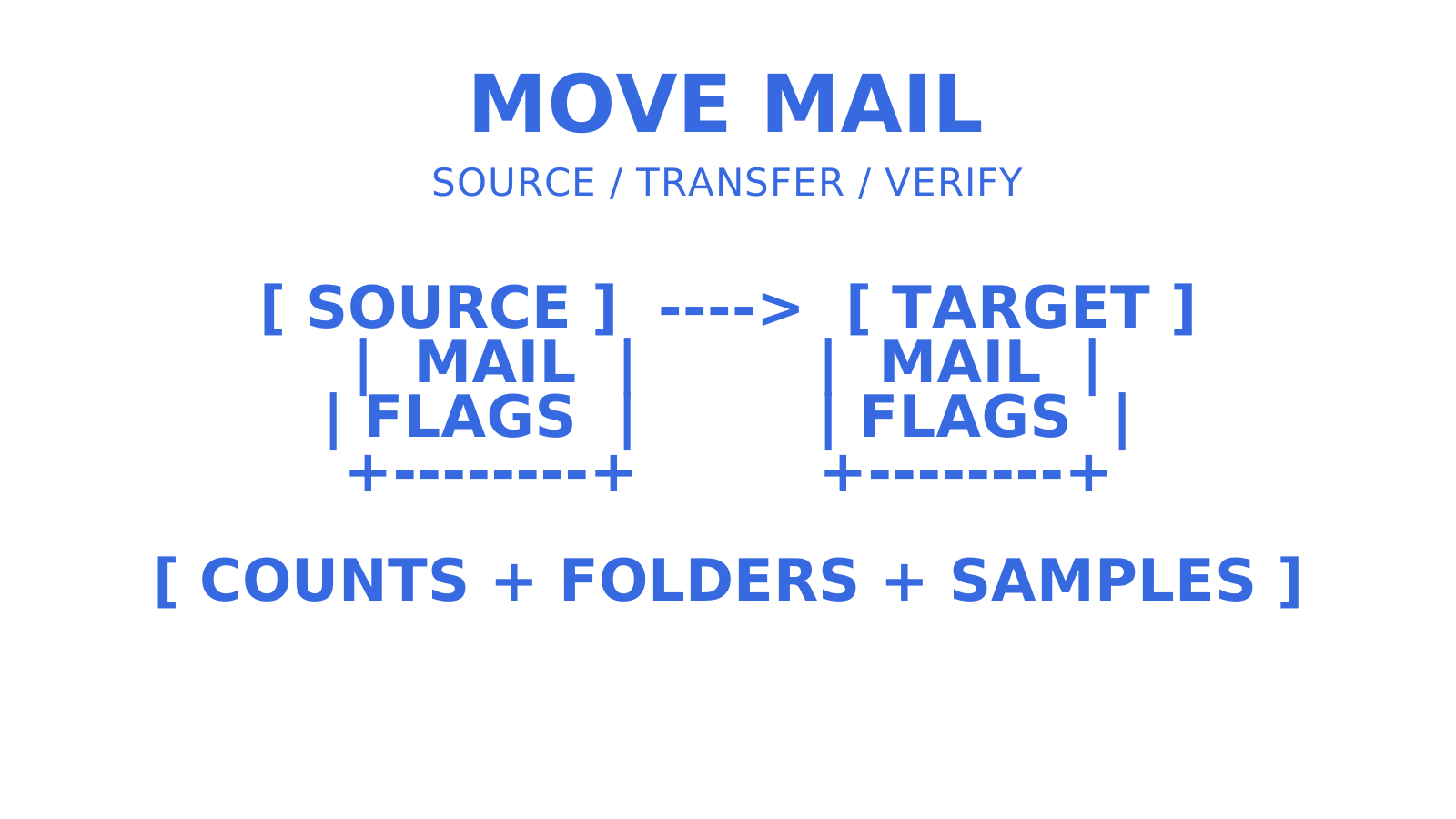
An incremental sync tool like imapsync can handle IMAP mailbox transfers, while staged pre-work with bounded parallel workers helps at enterprise scale. Platform-specific imports depend on both endpoints: Gmail’s message import endpoint writes into Gmail, while Exchange migrations use the supported Microsoft migration path. Paid migration services may be useful when the cutover window is tight, the mailbox count is large, or the team needs operational support. Whichever path you choose, run a dry-run first and a representative pilot transfer, then verify message counts, folder structure and flags afterward. Skip either check and migration failures can go undetected.
TL;DR
- Running a dry-run and pilot transfer with the largest mailbox first helps identify performance issues and reduce surprises during cutover.
- Cloud-native platform APIs expose platform-specific metadata, but preservation and throughput must be tested against IMAP-based migration tools like imapsync. API quotas still apply.
- Large mailboxes benefit from pre-staging historic messages and splitting archival mail into separate storage tiers to reduce size and improve transfer reliability.
- Verification should include message count, folder structure, flag integrity, and random message sampling to ensure data preservation and user trust.
- Combining API-based imports with IMAP transfers and orchestration tools can suit complex, enterprise-scale migrations when each path supports the required source and destination.
Table of Contents
- What Is IMAP Mailbox Migration and Why Do Enterprises Struggle With It?
- What Do You Need to Check Before You Migrate?
- Which Migration Tools Actually Work at Enterprise Scale?
- How Do You Handle Large Mailboxes Without Breaking Everything?
- What Does a Full Migration Workflow Look Like Step by Step?
- How Do You Verify a Migration Actually Worked?
- What Goes Wrong During Migration and How Do You Fix It?
- How Does Sendmux Support Post-Migration Mailbox Operations?
- Should You Choose an IMAP Transfer or an API-Based Import?
- Where Sendmux Fits After Your Migration Is Done
- Sources
- FAQ
What Is IMAP Mailbox Migration and Why Do Enterprises Struggle With It?
IMAP mailbox migration is the process of transferring mail, folders and supported message metadata from one IMAP server to another, typically ahead of a platform switch to Microsoft 365 or a similar host. An imapsync migration is a one-directional incremental transfer, not a live bidirectional sync. Repeated passes can copy new mail and update supported flags, but imapsync is not intended to keep two accounts in agreement while a user works in both places, a point Imapsync’s own documentation is blunt about.
Enterprises struggle with it because the individual mailbox migration process is well understood, but the coordination changes at scale. Migrating 20 mailboxes may be a scripting exercise. Migrating 20,000 mailboxes across multiple source domains, with users still receiving mail during the transfer, needs bounded orchestration and measured capacity. Microsoft’s migration documentation uses batches that admins can monitor and verify in manageable groups, as detailed in its guidance on migrating IMAP mailboxes to Microsoft 365.
The terms “IMAP migration,” “mailbox migration” and “email account migration” are often used around this work. Here they mean moving mail data between IMAP endpoints while preserving supported structure and integrity. Mailbox migration can also describe platform-native moves that transfer calendars and contacts.
What Do You Need to Check Before You Migrate?
Migration failures can start with a missing preflight check. Before you write a single line of migration script, build an inventory and confirm access.
Start with a CSV that captures, per mailbox: email address, username (often different from the address), source host, port, authentication method, and destination mailbox ID. This becomes your migration manifest and the input for every batch job that follows.
- Authentication mapping. Note whether each account uses basic auth, an app password, or XOAUTH2/service-account tokens. Legacy on-premises IMAP servers may still allow basic auth. Exchange Online IMAP requires OAuth, while Gmail authentication depends on account policy and may allow app passwords for eligible accounts. Confirm each endpoint’s requirements before testing.
- Network and concurrency limits. Test how many simultaneous connections the source server tolerates before you commit to a worker count. Check for limits missing from the documentation before the full migration.
- Connection and folder tests. Run a connection test against a sample of accounts and pull a folder listing before touching real data, confirming credentials and mailbox structure both check out.
- Migration window and TTL planning. Decide your cutover window and drop DNS TTL values ahead of time so MX changes propagate fast when you need them to. Set expectations with users about downtime or delayed mail during the window, a step Distribute Group’s migration guidance also discusses.
- Dry-run sampling. Pick a small mailbox, a medium one and your largest one. Run the tool’s dry-run checks, then a real pilot transfer against test destination mailboxes before committing to the whole batch.
Pro Tip: Include the largest mailbox in your dry-run and pilot transfer, alongside smaller samples. A 2GB test mailbox that migrates cleanly does not prove how your tooling behaves against a 60GB mailbox with 40 nested folders.
Which Migration Tools Actually Work at Enterprise Scale?
The right tool depends less on brand preference and more on where your mail lives and how much metadata you need to preserve.
Imapsync-style tools are an option for raw IMAP-to-IMAP transfers. Imapsync copies supported flags, supports incremental resume so a failed job does not force a full restart, and scripts for bulk jobs across a CSV of accounts, according to its official documentation. It moves mail only, not calendars or contacts, and it is a one-way incremental transfer rather than a bidirectional sync engine, so plan separate handling for calendar and contact data if your source system holds it.
Platform-API imports can be useful when the destination exposes the features you need. Gmail’s API, for instance, has a dedicated message import endpoint for programmatic mailbox transfers into Gmail. Test label and date handling explicitly. The API has its own bandwidth, rate and concurrency limits. The trade-off is platform-specific handling: you are writing to that API’s schema, not a generic IMAP folder structure.
Hosted migration services and orchestration APIs can help with high-touch, short-window cutovers. Check for connection tests, start, monitor, retry and cancel operations, and confirm the concurrency limit. The TrekMail migration orchestration API documents one active migration per account and a server-wide capacity limit. Those controls can help when hundreds of mailboxes must move over a weekend.
For parallel processing, a CSV-driven worker pool is the standard pattern: read your inventory, spin up a bounded number of workers, and process accounts concurrently rather than sequentially.
Check the simultaneous-account limit in imap-migrator or your chosen migration tool. Start with a conservative worker count, measure aggregate throughput and server errors, then increase it while capacity allows.
That number is a starting point, not a rule. Test your source server’s tolerance before scaling worker count up, and always validate OAuth scopes with a dry-run before running a bulk XOAUTH2-authenticated job. A token with the wrong scope fails loudly on account one. Better to find that in testing than at 2am on cutover night.
How Do You Handle Large Mailboxes Without Breaking Everything?
Large mailboxes fail differently to small ones, and the failure modes are predictable once you know what to watch for.
IMAP server concurrency, bandwidth, folder sizing and UID or Message-ID tracking can affect large-mailbox performance. Measure those bottlenecks and test duplicate detection before adding parallel workers. UIDs are scoped to a server mailbox and UIDVALIDITY, so do not compare source and destination UIDs directly. Use the migration tool’s documented matching method, which may use headers or a persistent UID mapping.
For very large mailboxes, pre-stage historic messages and run a smaller final delta closer to cutover using filters supported by your tool. Microsoft’s large-mailbox migration documentation describes Large Archive Onboarding for mailboxes over 100 GB, using time ranges or folders to map content into Exchange Online primary and archive mailboxes through PowerShell. Consider a separate archive where the destination supports it, and check licensing and storage costs before assuming a saving.
- Backoff and retry logic. Build bounded retries with exponential backoff for documented transient failures, honouring any provider retry time, and stop for invalid credentials or exhausted retries.
- Folder mapping. System folders (Trash, Spam, Drafts, Sent) are named differently across providers. Map them explicitly rather than relying on auto-detection, since implementations diverge enough to cause silent data placement errors.
- Nested folders. Confirm your tool preserves folder hierarchy rather than flattening it. Deeply nested folder structures are where a lot of “successful” migrations quietly lose organisation.
- Storage trade-offs. Weigh the destination storage cost of importing everything into a primary mailbox against splitting older mail into an archive tier.
Pro Tip: Treat any undocumented rate limit as a discovery task, not an assumption. Start conservative, monitor response times and error rates in real time, then scale concurrency up in small increments rather than guessing a number upfront.
What Does a Full Migration Workflow Look Like Step by Step?
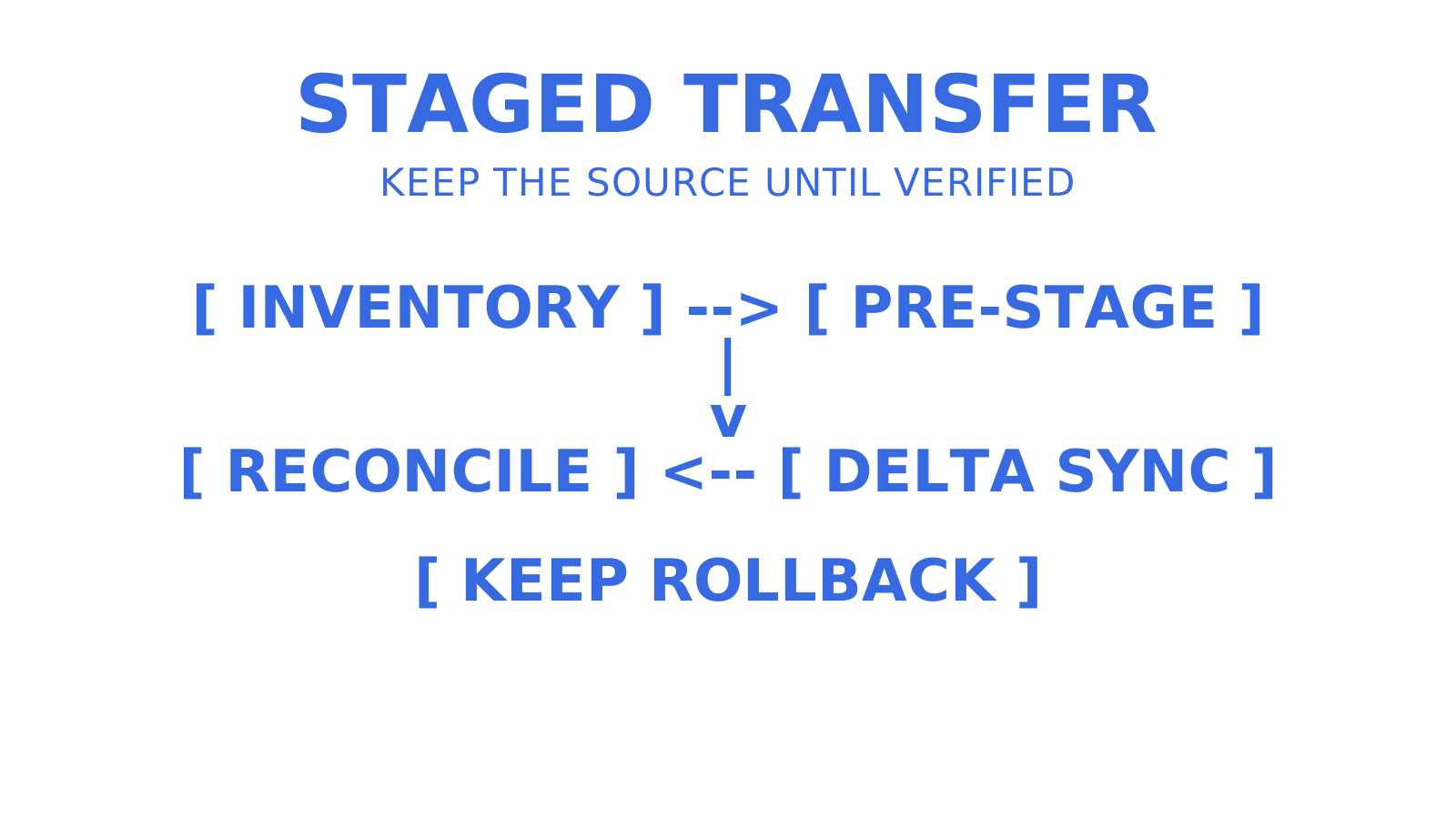
A practical migration plan includes validation, pre-staging, incremental transfers, cutover and verification. Adapt the sequence to the supported raw IMAP, API import or hosted-service workflow, and measure timings in the pilot.
- Validate. Test credentials against every account in your inventory and pull a folder listing for each, capturing baseline message counts and folder sizes before anything moves. This is your reconciliation baseline, so don’t skip it even under time pressure.
- Pre-stage. Migrate historic mail first, filtered by date or size, and log per-folder progress with error detail as it runs. This is the bulk of the data volume and the part with the most tolerance for a slower, more careful pace.
- Run incremental syncs. Schedule repeated sync passes rather than one long job. Tune worker count against what you learned in your connection tests, and confirm your tool’s resume behaviour actually resumes rather than restarting from zero on a retry.
- Final delta and cutover. Restrict user changes on the source where feasible, run a delta sync, then update MX records after lowering TTL well ahead of cutover. Keep source delivery available during DNS convergence and run another delta to capture late arrivals before ending source synchronisation. Reconfigure client mail apps under the verified cutover plan, then restore the normal TTL after routing is stable.
- Verify and preserve rollback options. For copy-based transfers, keep the source mailbox read-only for an agreed window rather than deleting it immediately, and archive your cutover logs and evidence in case anyone needs to reconcile a dispute later.
| Workflow stage | Primary action | Typical duration | Key risk if skipped |
|---|---|---|---|
| Validate | Credential and folder tests, baseline counts | Hours | Undetected auth failures at scale |
| Pre-stage | Bulk historic transfer by date/size filter | Days | Cutover window overruns |
| Incremental sync | Scheduled repeat passes, worker tuning | Ongoing until cutover | Data drift between source and destination |
| Final delta | Sync before and after verified MX cutover | Hours | Lost mail sent during the gap |
| Verify | Reconciliation, spot checks, rollback window | Days after cutover | Undetected data loss discovered too late |
Use these stages as a planning checklist. An imapsync job, a hosted migration service and a platform API import differ in supported filters, synchronisation behaviour and cutover mechanics, so follow the chosen tool’s documented sequence. The table’s durations are planning examples, not guaranteed completion times.
How Do You Verify a Migration Actually Worked?
A migration that “completed without errors” and a migration that actually preserved every message are two different claims, and only one of them matters to your users.
Start with message-count and folder-size reconciliation. Compare the validation baseline with the destination, folder by folder, and investigate every unexplained difference. Mid-migration mail, duplicate suppression and deleted-item behaviour can explain count differences, but record those explanations and reconcile late arrivals. A small percentage gap in a low-priority folder does not by itself prove preservation.
- Parse migration logs into retryable failures, credential or policy failures, and permanent errors. Retry only supported transient failures. Investigate exhausted retries and invalid mailbox or deleted-account errors manually.
- Sample real messages across several users, checking that flags (read, flagged, replied) carried over correctly, not just that the message body arrived.
- Confirm Sent items migrated, and include them in the same count, flag and message-sampling checks as the Inbox.
- Run a search test on the destination mailbox for a known subject line or sender, confirming your indexing caught up, not just that the raw data landed.
- Before deleting anything on the source, confirm retention or legal hold requirements are satisfied and that deprovisioning follows your organisation’s data-handling policy.
Microsoft’s migration documentation frames this verification step as part of the batch process itself, not an optional afterthought, which is the right instinct: build reconciliation into your workflow rather than bolting it on after the fact.
What Goes Wrong During Migration and How Do You Fix It?
A migration can encounter any of these problems. Knowing how to investigate them in advance reduces work during cutover.
- Authentication failures. Check OAuth scopes, expired or invalid tokens, revoked app passwords where supported, and account policy. Re-check the exact scopes your tool requests against what the endpoint granted, then run a connection test before resuming the bulk job.
- Throttling and connection resets. Rate-limit errors call for reduced concurrency and backoff. Connection resets also require network and server-log checks. Track retries per account so repeated failures are investigated instead of treated as indefinitely transient.
- Message-size and attachment failures. Large messages can exceed destination limits. If you use a skip-large filter, log every skipped message and preserve its original bytes for a supported import path or archive. Split the transfer batch where useful, not the message itself. An archived exception is not a successfully imported mailbox item.
- Duplicate or missing messages. Check matching rules, filters, folder mappings and error logs. UIDs are server- and mailbox-scoped. Imapsync normally matches Message-Id and Received headers and also supports a persistent UID cache. Validate matching on a dry-run before changing it instead of treating Message-ID alone as a universal deduplication key.
- Escalating to support. If you need to raise a ticket with a tool or platform vendor, include a redacted account inventory sample, exact error text, timestamps and the worker/concurrency settings you were running. Those details help the vendor investigate without exposing mailbox credentials.
Pro Tip: Keep a running error log tagged by category (auth, throttle, size, duplicate) from the first test run. When something breaks at 3am during cutover, you want pattern recognition, not a fresh investigation.
How Does Sendmux Support Post-Migration Mailbox Operations?
Once mail lands on the destination, the next question for a lot of engineering teams is what happens to that mailbox programmatically, particularly for support, monitoring or automation workloads sitting on top of it. The layer myagent.mx and Sendmux focus on is programmatic access to Sendmux-hosted mailboxes. Connecting a Gmail or Outlook sending account does not import its inbox.
Sendmux mailboxes are persistent state rather than a webhook drop: the Mailbox API covers messages, threads, folders, keywords, attachments, sender identities and storage quotas, so messages stored in a Sendmux-hosted mailbox can be queried, searched and acted on programmatically after cutover, not just received into. Inbound mail after migration can reach an automated workflow two ways, through a Server-Sent Events stream or through signed HMAC-SHA256 webhooks, both scoped to mailboxes and filterable by event type. Webhook delivery attempts and payloads are retained for seven days for troubleshooting.
Credential handling follows the same scoped-access principle worth applying to any migration project: a mailbox-scoped key is restricted to its mailbox and granted permissions (send, receive, mailbox read and settings update), rather than a single team-wide key touching everything. For teams building agent-driven mailboxes rather than migrating human inboxes, Myagent directs an agent to Sendmux registration for its own address without a human completing signup first. After provisioning, it can read and receive mail, with sending unlocked only once the invited owner accepts and explicitly approves sending.
Storage tiers of 1GB, 5GB and 50GB per mailbox are available for Sendmux-hosted mailbox storage. Check the applicable plan and agent allocation before using those tiers in an archive-versus-primary budget.
Should You Choose an IMAP Transfer or an API-Based Import?
There is no universally correct answer here, only trade-offs that shift depending on what you are migrating. IMAP transfer is portable across endpoints that expose compatible IMAP access and authentication, and imapsync’s incremental resume helps with interruptions. Measure metadata fidelity and speed against the specific platform’s dedicated APIs. Neither advantage is guaranteed.
API-based imports, Gmail’s included, offer platform-specific controls but retain their own throttling limits and require separate handling for each endpoint. Weigh source type, mailbox size, available credentials and acceptable downtime. For enterprise-scale cutovers with mixed systems, test a staged combination of supported API imports and imapsync-style transfers against the simpler single-tool option before choosing.
Where Sendmux Fits After Your Migration Is Done
Migration tools solve the transfer problem. Plan post-migration access separately, particularly when applications need to search or act on the destination mailbox. For Sendmux-hosted mailboxes, Sendmux provides real mailbox state you can query, search and automate against through one API, alongside connected sending providers and signed webhooks.
If your post-migration plan includes agent mailboxes, automated verification workflows, or event-driven processing on top of migrated mail, the Mailbox API and inbox capabilities are worth a look, along with the broader email API built for agent builders. Pricing includes usage charges and plan terms rather than per-seat or per-mailbox licence fees. Pro also has a per-team monthly base charge, so budget for that charge, usage and the applicable limits when running a fleet of automated mailboxes. Start with a self-registered agent mailbox through Myagent to see how the API handles a real inbox, and check the Free plan, usage charges and storage limits before committing to production.
Sources
- Imapsync - official site
- Migrate large mailboxes from Google or other IMAP sources to Microsoft 365 Exchange
FAQ
Is There an IMAP Migration Tool for Microsoft 365?
Yes. Microsoft 365 supports native IMAP migration batches through the Exchange admin centre. Third-party tools like imapsync provide a separate IMAP-to-IMAP transfer path where both endpoints permit it. Validate the chosen path’s authentication, message-size and item-count limits.
What’s the Best Tool for IMAP-to-IMAP Migration?
Imapsync is an option for direct IMAP-to-IMAP transfers with incremental resume and supported flag preservation, though it moves mail only, not calendars or contacts.
How Do I Migrate All Emails Between Two Outlook Accounts?
First distinguish personal Outlook.com accounts from organisational Microsoft 365 mailboxes. For Microsoft 365 tenant-to-tenant moves, use the documented cross-tenant migration process with its tenant preparation and licensing requirements. A completed native cross-tenant move deletes the source mailbox, so follow Microsoft’s documented move-back process if you need to return it to the original tenant. For personal accounts, use a supported Outlook export/import path. For IMAP-based sources, confirm authentication, limits and folder mapping before an incremental transfer.
Is There a Good Free Email Migration Tool?
Imapsync source is available under a permissive licence, including a public GitHub copy. The author charges for current download packages and support. Check the version and support you need before treating it as a zero-cost migration. Programmatic access to a Sendmux-hosted mailbox, by comparison, is available through Sendmux’s self-registered agent mailboxes, subject to the Free plan’s usage and storage limits.
Do I Need to Migrate Calendars and Contacts Separately?
Yes. IMAP migration and tools like imapsync handle mail only, so calendars and contacts need a separate transfer method appropriate to your source and destination platforms.
Give an agent its own address
Sendmux is the Email Inbox API for AI Agents.