 myagent.mxBLOG
deliverability · dkim with multiple providers
4 Steps to Keep DKIM With Multiple Providers Aligned for Engineers
A compact operations runbook for engineers: four repeatable steps to add and rotate DKIM selectors, avoid selector collisions, and keep SPF and DMARC aligned.
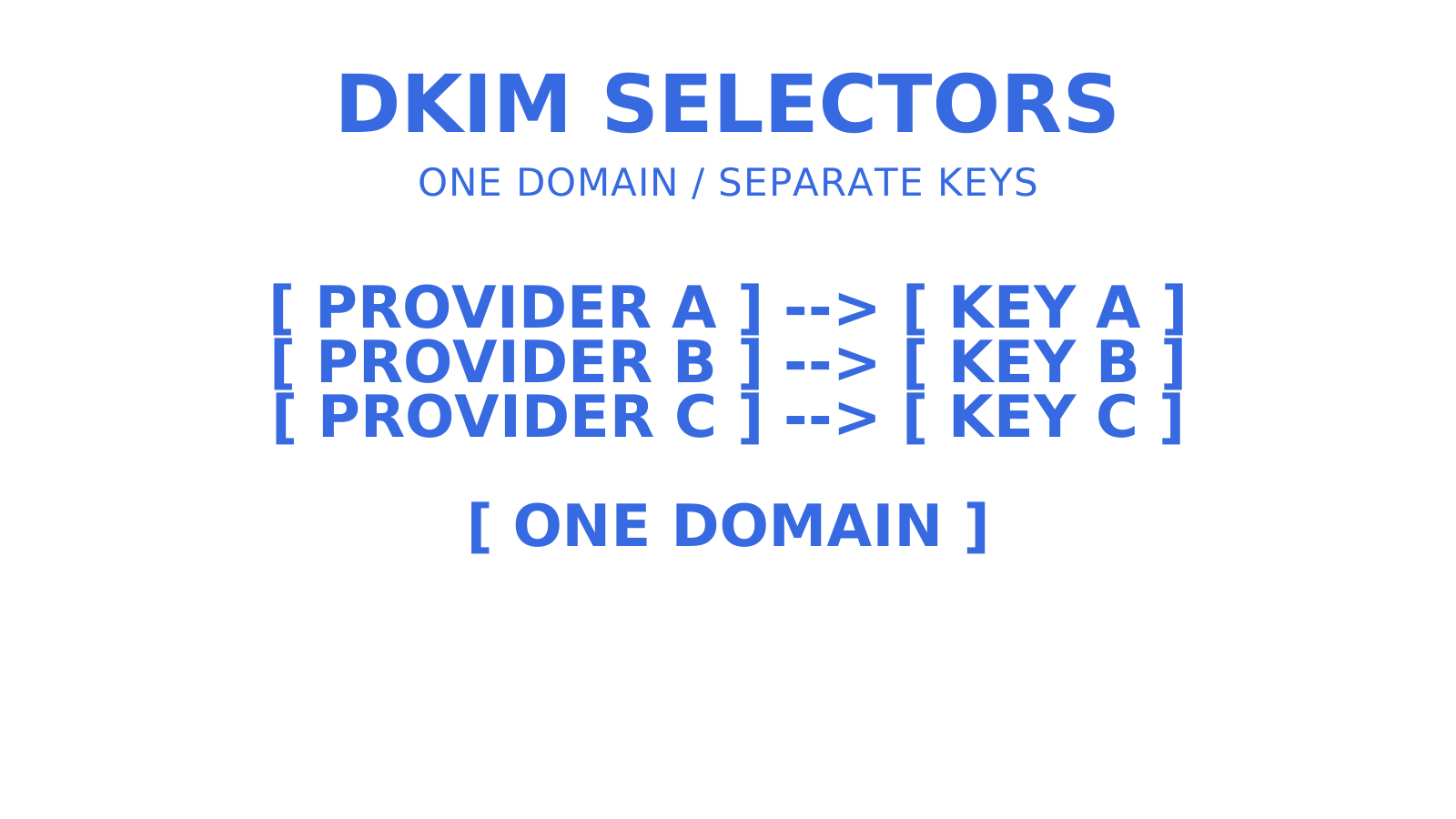
Yes. A single domain can publish multiple DKIM selectors, and each sending service can sign mail with its own key under its own selector. The main caveats: give every provider distinct selector names within the signing domain, follow that provider’s exact TXT or CNAME format, and check SPF authentication and DMARC alignment once you’ve got three or four services signing on your behalf.
TL;DR
- Each provider needs distinct DKIM selector names and its required DNS record type, with CNAME delegation used by Microsoft and several ESPs, and TXT records used by Google Workspace, to prevent conflicts and ensure proper verification.
- Proper logging of each selector, provider, and setup date is critical to avoid confusion when troubleshooting or adding additional services later.
- DNS record configuration errors can stem from hostname misplacement, record type confusion, or a missing
_domainkeylabel, affecting DKIM validation. - Check SPF authentication and DMARC alignment for every provider, paying attention to SPF’s lookup limit and Return-Path differences and reviewing DMARC reports regularly.
- Rotating DKIM keys gradually with overlapping selectors minimises mail disruptions, using clear naming conventions and staggered timelines for smooth transitions.
Table of Contents
- Setting up DKIM with multiple providers: a repeatable checklist
- Getting the selector and DNS record right the first time
- Making DKIM, SPF, and DMARC agree across senders
- A rotation pattern that doesn’t break mail mid-flight
- Troubleshooting DKIM failures when several providers sign mail
- Where this guidance comes from
- Subdomains or root domain: how to decide where each provider signs
- Managing multi-provider sending without the DNS guesswork
- Sources
- FAQ
Setting up DKIM with multiple providers: a repeatable checklist
Every new provider you add follows the same four moves. Treat this as a template you run each time you connect Google Workspace, Microsoft 365, an ESP, or a transactional API to the same domain.
- Get the selector and record type from the provider’s dashboard. Use the values it generates for your domain. Microsoft 365 supplies two selectors for rotation from day one.
- Publish the DNS record at
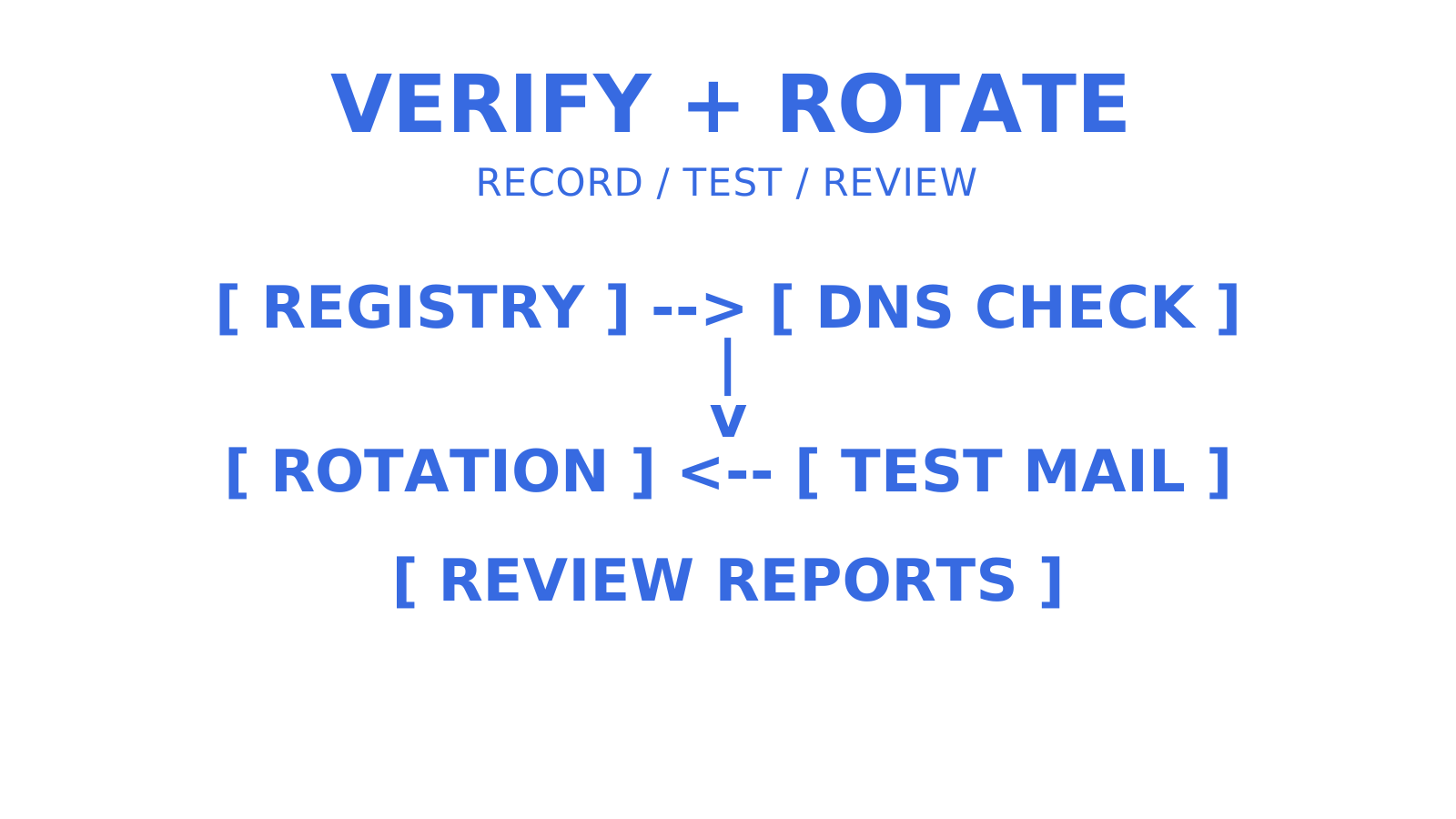
selector._domainkey.example.com. Some providers want a TXT record with the raw public key. Others, notably Microsoft, want a CNAME pointing to a hostname they host and manage. - Verify, then test. Wait for the provider’s own DNS check to pass, send a real test email to a mailbox you control, and pull the raw headers to confirm the
s=(selector) andd=(domain) values match what you just published. - Log it. Add the selector name, the provider, who set it up, and the rotation date to a shared registry. This sounds like busywork until the second provider fails and nobody remembers which selector belongs to which service.
Pro Tip: When a provider lets you choose selectors, use its naming limits and record the provider and year in your registry. SendGrid accepts a custom selector of one to three letters or numbers, so a label such as a1 fits where sendgrid2026 does not. Names like “key1” or “selector3” still need registry context. Keep provider-assigned selectors exactly as supplied.
Skipping step four can turn troubleshooting into a forensic exercise six months later.
Getting the selector and DNS record right the first time
DKIM verification works by reconstructing a specific hostname. A receiving server takes the selector from the DKIM-Signature header and builds a lookup at selector._domainkey.domain, exactly as RFC 6376 specifies, then retrieves the public key in the DNS TXT response, following any CNAME delegation. That lookup mechanism lets one domain host multiple selectors: each uses a separate DNS name, and RFC 6376 supports multiple concurrent keys per domain.
Record type and hostname mistakes are useful first checks. Watch for these:
- TXT vs CNAME confusion. Google Workspace uses a TXT record holding the key directly. ESP requirements vary. Microsoft 365 uses CNAME delegation, pointing your selector names at Microsoft-hosted records so it can rotate keys without asking you to change those DNS records, as Microsoft’s own configuration guidance lays out.
- Double-appended zones. DNS panels that auto-append the domain can turn a pasted
selector._domainkey.example.comintoselector._domainkey.example.com.example.com. Enter onlyselector._domainkeywhen that is the subdomain portion your panel asks for. - Missing the
_domainkeylabel entirely, a copy-paste error to check when moving across multiple provider dashboards. - Trailing dots in CNAME targets that some registrars require and others reject.
On TTL: Microsoft’s guidance recommends a minimum of 3,600 seconds for its DKIM CNAME records. It lists very short TTLs as one possible cause of intermittent key-lookup timeouts and temperror results, because resolvers query authoritative DNS more frequently. Follow each provider’s guidance rather than treating 3,600 seconds as a universal DKIM requirement.
Making DKIM, SPF, and DMARC agree across senders
An unaligned DKIM pass doesn’t produce a DMARC pass. DMARC can pass through either authenticated, aligned DKIM or authenticated, aligned SPF. For DKIM, the d= domain and the visible From domain must be identical in strict mode. Relaxed mode requires the same Organizational Domain. The Dmarc overview introduces this alignment requirement. Add a fourth provider and you’ve added another configuration to verify.
Three things to check as your provider list grows:
- SPF’s 10-lookup ceiling. Every evaluated
include:mechanism counts toward SPF’s limit of ten DNS-querying terms, including nested evaluations. Four or five providers with include chains can exceed this limit. Check the full evaluation before using provider-supported flattening or SPF macros: macros do not remove the limit, and flattened IP lists must stay current when a provider changes its addresses. - Return-Path domains. Some ESPs use their own envelope MAIL FROM domain by default, which can leave SPF unaligned with your visible From domain even when DKIM passes. Ask each provider about a custom Return-Path and its required SPF setup. An aligned DKIM pass can still satisfy DMARC when SPF is unaligned.
- Aggregate reports as your early-warning system. DMARC aggregate reports can show source IPs and authentication or alignment failures reported by participating receivers. Compare them with provider logs to identify the sending service. Reports are useful evidence, not a guarantee that every failure appears before bounced mail.
Pro Tip: Review DMARC aggregate reports weekly for the first month after adding a new provider, then continue regular monitoring.
A rotation pattern that doesn’t break mail mid-flight
Rotating a DKIM key across four providers at once can make a failure harder to isolate. A practical pattern is dual-publish and verify one provider at a time, following any provider-managed rotation process.
- Publish the new selector alongside the existing one, so both keys are live in DNS simultaneously.
- Wait for propagation across resolvers, then switch that provider’s signing configuration to the new selector.
- Verify with a test send and header inspection before touching anything else.
- Retire the old selector only after the new one is signing cleanly and the overlap window covers mail already in transit and DNS caching. If your provider manages rotation behind fixed CNAME selectors, keep the records it requires rather than deleting the inactive selector.
Where you manage selector names, use a versioned naming convention such as provider2026a and provider2026b to avoid reusing a name for a new key. Keep provider-managed selectors unchanged. Operator runbooks discuss multi-provider rotation. RFC 8301 recommends RSA keys of at least 2048 bits. A roughly two-week gap between providers is one possible change schedule. Verify each rotation before starting the next.
Troubleshooting DKIM failures when several providers sign mail
Use these four troubleshooting checks for a multi-provider setup. Match the symptom, investigate the cause, and apply the relevant fix.
dkim=failordkim=temperror: inspect the reported reason.dkim=failcan indicate a signature or message-integrity mismatch, whiledkim=temperrorindicates a temporary verification problem. Check public DNS resolution, propagation and provider TTL guidance, then check the key and signed content rather than assuming every failure is DNS-related.CnameMissing: check for a missing record, wrong hostname or zone, incorrect target, or record-type mismatch. Confirm whether the provider wanted a CNAME (Microsoft’s pattern) rather than the TXT record you published, and compare every value with its dashboard.- Selector collision: two providers are trying to use the same selector name under the same signing domain. Choose a different selector where a provider permits it, publish the corresponding record, and update that provider’s configuration. Do not arbitrarily rename provider-assigned selectors.
- Silent signing failures: when a
DKIM-Signatureheader is present, trace itss=andd=values against your selector registry and the receiving system’s trustedAuthentication-Resultsheader. If the signature is absent, check the sending provider’s DKIM configuration and logs. There are no selector values in that message to inspect.
Pro Tip: Keep a raw test email from each provider on file. When something breaks, you’ve got a known-good header to diff against the failing one.
Where this guidance comes from
Sendmux provides email capabilities for agents and platforms, including hosted mailboxes, domain verification and outbound routing across connected providers. Selector management, DNS verification and rotation scheduling are operational concerns for teams using multiple providers. The protocol and provider documentation cited here establish the guidance.
Sendmux’s platform supports SPF, DKIM, and DMARC checks for domains configured in Sendmux, alongside outbound routing across a customer’s own connected providers, be that Gmail, Outlook, Amazon SES, or custom SMTP, with per-provider health monitoring and delivery logs. For teams managing this by hand, the practical takeaway holds regardless of what platform you run: keep a selector registry, calendar your rotations, and verify programmatically wherever your tooling allows it rather than trusting memory. Sendmux’s domain verification documentation walks through the DNS side in more depth for developers setting this up directly.
Subdomains or root domain: how to decide where each provider signs
Put marketing and bulk sends on a subdomain, like mail.example.com, to help separate mail streams and reduce reputation risk for transactional sending on the root domain. This does not guarantee isolation: receivers can assess related domains together. Root-domain alignment can still suit teams prioritising brand consistency and a simpler DMARC policy.
Whichever you choose, write it down. The strategies that hold up over years, not months, are the ones enforced consistently in a registry, not the ones that happened to be correct on setup day.
Managing multi-provider sending without the DNS guesswork
Adding a third or fourth sending provider to one domain adds more manual DNS work, another selector, another rotation date, another place for a copy-paste error to hide. Some platforms handle domain verification for SPF, DKIM, and DMARC directly, and route outbound mail across connected providers, with per-provider health checks, delivery logs, and quotas. You still need to track selector overlap and rotations for the providers you connect.
For teams that want programmatic verification rather than dashboard clicking, Sendmux’s email API exposes domain and sending-account status directly, and the shared @myagent.mx domain needs no customer DNS setup when you create a mailbox within your plan’s limits. If you’re weighing how to structure sending across several providers on one domain, set up a Sendmux mailbox, then use the domain and sending-account tools for your own configured domain and providers. A shared-domain mailbox itself needs no DNS changes.
Sources
For selectors and signature verification, use RFC 6376 alongside its cryptographic update, RFC 8301. For Microsoft-specific CNAME patterns and configuration errors, consult Microsoft’s DKIM documentation. The DMARC overview introduces alignment and aggregate reports, with the current protocol and reporting details in RFC 9989 and RFC 9990. Use those named protocol and provider sources as the operational checklist.
- RFC 6376
- Microsoft 365 DKIM configuration and troubleshooting
- DKIM with multiple ESPs: How to Set Up Multiple Selectors Safely (2026)
FAQ
Can you have multiple DKIM records on one domain?
Yes. A domain can publish multiple DKIM selectors, each at a separate DNS name, and RFC 6376 supports concurrent keys so multiple providers can sign without a selector collision. DNS and sending-provider limits still apply.
Can a domain use multiple DNS providers at the same time?
Yes. A single zone can use multiple authoritative DNS providers when their records and delegation are kept consistent, for example through primary/secondary zone transfers or a supported multi-provider setup. CNAME delegation to another hostname, as used by Microsoft DKIM, is a separate arrangement and does not itself make that provider authoritative for your entire zone.
Can one SPF record cover multiple sending domains?
An SPF record publishes one domain’s authorised senders. It does not automatically cover other sending domains or subdomains. You can include: another domain’s policy to reuse its authorised senders. Evaluated includes and their nested DNS-querying terms count toward the 10-lookup ceiling, so manage the complete evaluation path.
How do you set up SPF and DKIM for multiple domains or providers?
Publish each provider’s required DKIM selectors and TXT or CNAME records for every signing domain. Configure SPF for the actual MAIL FROM domain, including the required record when using a custom Return-Path. Verify DMARC alignment with test-message headers and aggregate reports rather than assuming a custom Return-Path replaces SPF configuration.
What’s the biggest risk when running DKIM across several providers?
Selector collisions and SPF’s 10-lookup limit are two risks to check when several providers send for one domain. Keep a central registry of each provider’s selector and include mechanism, and investigate other failure causes rather than assuming these two explain most incidents.
Give an agent its own address
Sendmux is the Email Inbox API for AI Agents.