---
title: "PowerShell for Mailbox Storage Quotas: Three Thresholds for Admins"
description: "Admin guide to mailbox storage quotas: three thresholds, copy ready PowerShell commands, archiving and how agent mailboxes differ."
canonical: "https://myagent.mx/blog/mailbox-storage-quotas"
publishedAt: "2026-09-20T07:08:04.990Z"
updatedAt: "2026-09-20T07:08:16.785Z"
category: "strategy"
topic: "mailbox storage quotas"
author: "Roshan Jonnalagadda"
authorProfile: "https://myagent.mx/blog/author/roshan-jonnalagadda"
keywords:
- "mailbox data limits"
- "manage email storage"
- "email storage limits"
- "mailbox size restrictions"
- "outlook storage limit"
- "mailbox storage quotas"
- "check mailbox quota"
- "email quota management"
- "increase mailbox storage"
- "mailbox space allocation"
- "email storage optimization"
- "mailbox retention policy"
- "how to increase mailbox quota"
---
# PowerShell for Mailbox Storage Quotas: Three Thresholds for Admins
Admin guide to mailbox storage quotas: three thresholds, copy ready PowerShell commands, archiving and how agent mailboxes differ.
Mailbox storage quotas are the fixed capacity thresholds Exchange enforces on a mailbox, in gigabytes, at three levels: issue warning, prohibit send, and prohibit send and receive. Admins check current usage in the Exchange admin centre or with PowerShell, adjust the thresholds per mailbox or in bulk, and fall back on archiving, retention policies, or a licence change when a quota genuinely needs to grow rather than just get tidied up.
***
> **TL;DR:**
>
> - Mailbox quotas include three thresholds: issue warning, prohibit send, and prohibit send and receive, each triggering different user restrictions.
> - Exchange Online limits mailbox size based on subscription tier, not configurable quotas, with typical caps between 50 GB and 100 GB depending on the plan.
> - On-premises Exchange allows setting unlimited quotas and higher thresholds, but these are constrained by physical storage and the `UseDatabaseQuotaDefaults` switch.
> - Monitoring usage with PowerShell or admin center reports and scheduling regular checks helps prevent hitting thresholds unexpectedly and facilitates capacity planning.
> - Managing quotas at scale relies on automation, tiered provisioning for agent mailboxes, and aligning retention policies with actual storage growth to avoid support issues.
***
## Table of Contents
- [What are mailbox storage quotas and default limits?](#what-are-mailbox-storage-quotas-and-default-limits)
- [How Exchange enforces thresholds and what users see](#how-exchange-enforces-thresholds-and-what-users-see)
- [How to check mailbox quota and current usage](#how-to-check-mailbox-quota-and-current-usage)
- [Setting or changing mailbox quotas in EAC and PowerShell](#setting-or-changing-mailbox-quotas-in-eac-and-powershell)
- [Archives, auto-expanding archive and retention: the other half of capacity](#archives-auto-expanding-archive-and-retention-the-other-half-of-capacity)
- [Fixing "quota exceeded" errors fast](#fixing-quota-exceeded-errors-fast)
- [Monitoring and capacity alerts before quotas become a fire](#monitoring-and-capacity-alerts-before-quotas-become-a-fire)
- [Setting quota policy that actually holds up](#setting-quota-policy-that-actually-holds-up)
- [How agent-managed mailboxes handle storage differently](#how-agent-managed-mailboxes-handle-storage-differently)
- [What running quota policy at scale actually teaches you](#what-running-quota-policy-at-scale-actually-teaches-you)
- [Provisioning agent mailboxes without the manual quota work](#provisioning-agent-mailboxes-without-the-manual-quota-work)
- [Sources](#sources)
- [FAQ](#faq)
## What are mailbox storage quotas and default limits?
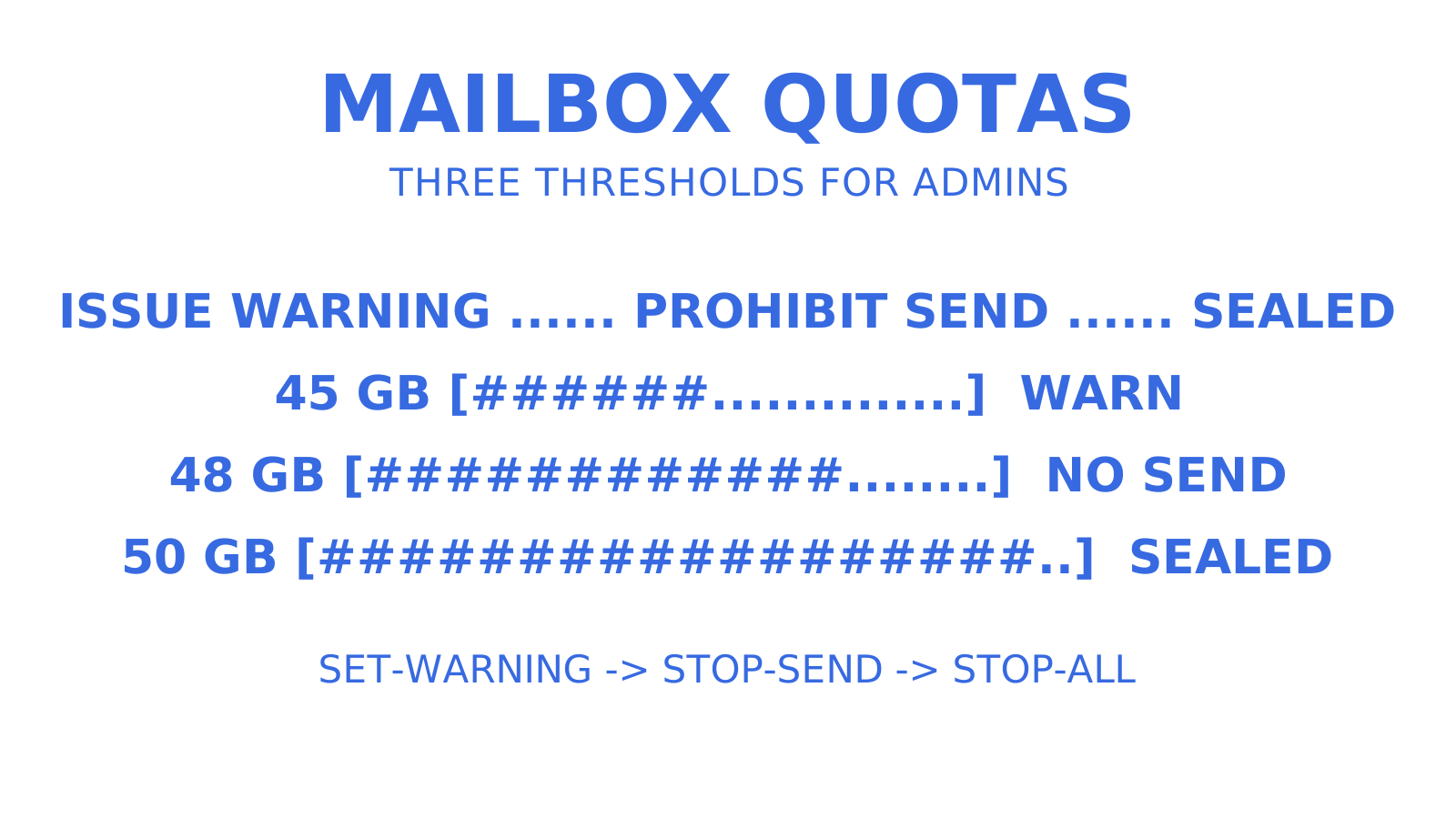
A mailbox storage quota is not one number. It is three numbers, stacked, each triggering a different consequence as a mailbox fills up. **Issue warning quota** sends the mailbox owner an email nudging them to clean up. **Prohibit send quota** stops the user sending new mail while still letting them receive. **Prohibit send and receive quota** blocks everything, incoming mail bounces back to the sender.
Where those numbers come from depends entirely on what you're running.
**Exchange Online:** the maximum mailbox size is determined by the Microsoft 365 or Office 365 licence assigned to the user. Administrators can set quotas below that licence ceiling, but cannot raise a mailbox above it. [Exchange Online service descriptions](https://learn.microsoft.com/en-us/office365/servicedescriptions/exchange-online-service-description/exchange-online-limits) lay out the caps that come bundled with each tier, and business and enterprise plans typically land in the 50 GB to 100 GB range depending on the subscription. There is no universal "Exchange Online limit". There's a limit per licence.
**Outlook.com (consumer):** entirely separate world. Free Outlook.com accounts sit on much smaller caps, while paid Microsoft 365 personal or family subscriptions unlock a substantially bigger tier. [Microsoft's own support documentation](https://support.microsoft.com/en-us/office/microsoft-storage-quotas-8f2f9d72-04d1-4223-a5ae-c2fdd26dd770) confirms consumer storage is subscription-gated in the same way enterprise storage is licence-gated, just with different numbers and no PowerShell to override them.
**Exchange Server (on-premises):** here you get real control. Every mailbox database carries a set of default quota values, and every mailbox in that database inherits them unless you explicitly override the mailbox to use its own values instead. That override is the `UseDatabaseQuotaDefaults` switch, and it's the single most important flag in this entire topic, because forgetting it is the number one reason a "per mailbox" quota change silently does nothing.
A few things worth nailing down before you touch any settings:
- Database defaults apply tenant-wide (well, database-wide) unless overridden, so a policy change at the database level moves every mailbox on it at once.
- Exchange Server lets you set quotas effectively as high as your storage will allow. There's no hard architectural ceiling the way there is with a licence-based cloud limit.
- Setting a quota to `Unlimited` is valid syntax in on-premises Exchange, though almost nobody should actually do this on a production database, because it removes your only automated brake on runaway storage growth.
- Exchange Online mailbox size cannot be pushed past what the assigned licence allows. If a user needs more room, the fix is a different subscription, not a bigger number typed into PowerShell.
- Shared mailboxes and resource mailboxes get their own defaults too, and they're commonly smaller than user mailbox defaults unless a licence is specifically assigned to lift them.
That licence dependency catches out a lot of admins moving from on-prem to the cloud for the first time. On Exchange Server, if a VIP needs 250 GB, you set 250 GB and you're done, provided the disk has room. In Exchange Online, if a VIP needs more than their current plan allows, the documented path is assigning a different subscription, because the ceiling is a licensing attribute, not a mailbox attribute you can just edit upward.
That's the biggest misconception worth correcting early: a quota you can raise with a cmdlet and a quota that's actually a licence limit look identical in the admin centre, but only one of them responds to `Set-Mailbox`.
## How Exchange enforces thresholds and what users see
Each threshold fires independently, and understanding what a user actually experiences at each one saves your helpdesk a lot of confused tickets.
At the **issue warning quota**, nothing breaks. The mailbox owner gets an automated email telling them they're approaching their limit, and everything continues to function normally. This is the polite tap on the shoulder, and it only works if it's configured correctly. Microsoft's on-premises Exchange documentation is specific here: the issue warning quota has to be set to at least 50% of the prohibit send quota, or the warning message simply won't send, and Exchange Online documents no equivalent floor. Set it too close to the prohibit send threshold and users get almost no runway between "you're getting full" and "you can't send mail".
At the **prohibit send quota**, the mailbox owner can no longer send new messages. Outlook and Outlook on the web both surface this clearly, usually with an error referencing mailbox size when the user tries to hit send. Incoming mail still arrives without issue, so from the outside, nothing looks wrong. From the inside, the user just can't get anything out.
At the **prohibit send and receive quota**, the mailbox is fully sealed. Anyone emailing that user gets a non-delivery report (NDR) bounce, typically citing a mailbox-full condition. This is the threshold that generates support tickets from *other* people, not just the mailbox owner, because senders outside the organisation have no idea why their message bounced.
A few enforcement details worth knowing:
- Storage quotas are evaluated against the mailbox's reported size, the `TotalItemSize` property, which is the same value `Get-MailboxStatistics` returns for capacity reporting.
- NDR wording differs slightly between Exchange Online and on-premises Exchange, but both point to a size or quota condition rather than a generic delivery failure.
- Microsoft documents a once-a-day warning cadence for folder-count limits such as folder hierarchy depth; for storage-quota warning emails it documents no repeat schedule, so treat any single warning as the one signal you'll reliably get.
- None of the three thresholds affects existing stored mail. A mailbox at prohibit send and receive still holds everything it already had. It just can't grow.
## How to check mailbox quota and current usage
Before changing anything, you need to know where a mailbox actually sits against its limits, and whether that limit is a database default or a per-mailbox override.
**In the Exchange admin centre (EAC):**
1. Navigate to **Recipients > Mailboxes**, and select the mailbox you want to inspect.
2. Open the mailbox properties and go to the **Mailbox usage** panel, which shows current size against issue warning, prohibit send, and prohibit send and receive values.
3. Check whether the mailbox is set to **"Customize the quota settings for this mailbox"** or still inherits the database defaults. If it inherits, any per-mailbox numbers you see are inherited, not overridden.
**In the Microsoft 365 admin centre**, the equivalent view sits under mailbox usage reports, which is faster for a quick glance but less detailed than EAC or PowerShell for anything you're about to act on.
**In PowerShell**, this is where real reporting work happens. Two cmdlets do almost everything:
`Get-MailboxStatistics -Identity user@domain.com | Select DisplayName, TotalItemSize, ItemCount`
Returns actual mailbox size and item count right now.
`Get-Mailbox -Identity user@domain.com | Select Name, *Quota*`
returns the configured threshold values, including whether database defaults are in use.
To find every mailbox creeping toward its limit across a whole tenant or database, combine the two and calculate percentage of capacity used:
```
Get-Mailbox -ResultSize Unlimited | Get-MailboxStatistics |
Where-Object {($_.TotalItemSize.Value.ToBytes() / 1GB) -gt 45} |
Select DisplayName, @{Name="SizeGB";Expression={$_.TotalItemSize.Value.ToGB()}}
```
Adjust the `45` to whatever gigabyte threshold matters for your environment, and pipe the result to `Export-Csv` to hand a clean list to your helpdesk team or store it for trend tracking.
**Pro Tip:** *Run your near-capacity report on a schedule, not just when someone complains. A mailbox creeping from 40 GB to 48 GB over three weeks is a completely different problem than one that jumps 10 GB overnight, and you only spot that pattern by comparing exports over time.*
## Setting or changing mailbox quotas in EAC and PowerShell
Changing a quota is straightforward once you know whether you're editing a single mailbox, a database default, or running a bulk update, and each of those three paths behaves a little differently.
**Single mailbox via EAC:**
1. Go to **Recipients > Mailboxes**, select the mailbox, and open **Mailbox usage**.
2. Under **More options**, select **"Customize the quota settings for this mailbox"** instead of inheriting the database defaults.
3. Enter your own values for issue warning, prohibit send, and prohibit send and receive, then save.
Skip step two and your new numbers get ignored the next time Exchange recalculates against the database default. This is the single most common support ticket in quota management: "I changed the quota and it didn't work", when really it never left the default.
**Single mailbox via PowerShell**, using the documented Set-Mailbox parameters:
```
Set-Mailbox -Identity user@domain.com -IssueWarningQuota 45GB -ProhibitSendQuota 48GB -ProhibitSendReceiveQuota 50GB -UseDatabaseQuotaDefaults $false
```
That `-UseDatabaseQuotaDefaults $false` flag is doing the same job as the EAC customization. Without it, the numeric values you just set are stored but inactive.
**Database-level defaults**, which apply to every mailbox on that database still using inherited settings:
```
Set-MailboxDatabase -Identity "DB01" -IssueWarningQuota 45GB -ProhibitSendQuota 48GB -ProhibitSendReceiveQuota 50GB
```
This is the lever to pull when an entire department or site needs a policy shift, rather than editing dozens of mailboxes one at a time.
**Bulk edits across many mailboxes**, piping a filtered set into `Set-Mailbox`:
```
Get-Mailbox -OrganizationalUnit "Sales" | Set-Mailbox -IssueWarningQuota 45GB -ProhibitSendQuota 48GB -ProhibitSendReceiveQuota 50GB -UseDatabaseQuotaDefaults $false
```
Swap the `-OrganizationalUnit` filter for whatever scoping makes sense, a distribution group, a department attribute, or a specific database.
A note on value ranges: Microsoft's parameter documentation requires prohibit send and receive quota to be greater than or equal to both prohibit send quota and issue warning quota on `Set-Mailbox` and `Set-MailboxDatabase`, so keep issue warning and prohibit send at or below the send-and-receive value and the stack stays consistent. And remember the 50% rule from the previous section: on-premises Exchange skips the warning email when issue warning sits below half of prohibit send, even though the cmdlet accepts the value without complaint.
**Pro Tip:** *After any bulk change, immediately re-run `Get-Mailbox | Select Name, *Quota*` against the same scope you just edited. It takes ten seconds and catches the mailboxes that were excluded from a filter or already had a per-mailbox override blocking the database default from applying.*
For Exchange Online specifically, remember the ceiling from the licence still applies regardless of what values you type. PowerShell will let you set a prohibit send and receive quota higher than your licence supports, and the mailbox will simply never be able to use that headroom until the subscription changes.
## Archives, auto-expanding archive and retention: the other half of capacity
A quota tells you how much room a mailbox has. Archiving and retention change how much of that room actual mail is taking up, and the two interact in ways that catch admins out when they treat quota policy in isolation.
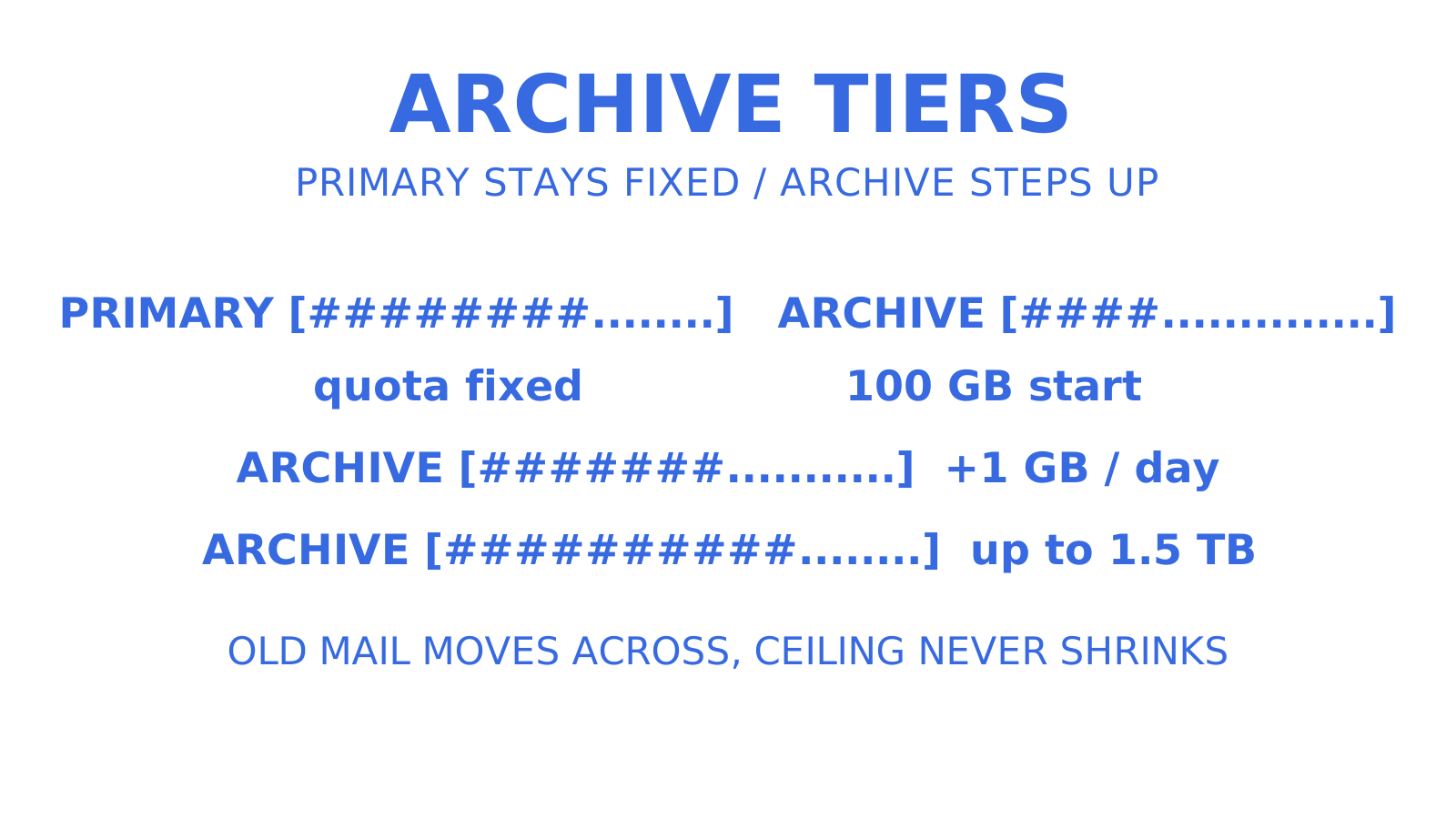
**Auto-expanding archive** is the cloud feature that grows an online archive mailbox automatically once the archive starts nearing its storage limit, rather than forcing an admin to manually provision more space. Each user starts with 100 GB of archive storage, additional capacity is added incrementally as the limit approaches at a growth rate of no more than 1 GB per day, the archive can reach 1.5 TB, and provisioning extra space can take as long as 30 days. It doesn't touch the primary mailbox quota at all, it just gives archived mail somewhere to keep expanding.
**Litigation hold and retention policies** change the maths in the opposite direction. Deleted or edited items don't actually leave the mailbox under a hold, they move into the **Recoverable Items** folder, and that folder has its own storage allocation and its own quota separate from the visible mailbox. Microsoft's documentation explains how the Managed Folder Assistant purges items from this folder once the deleted-item retention period passes, a cleanup that only proceeds when no hold is preventing deletion. A mailbox on litigation hold can look emptied out to the user while actually carrying far more total data than the primary quota suggests, because everything they thought they deleted is still sitting in Recoverable Items.
A few practical points to carry into policy design:
- Enabling an archive mailbox gives users somewhere to offload old mail without deleting it, which relieves primary mailbox pressure without touching compliance requirements.
- A mailbox under litigation hold or an eDiscovery hold will keep growing in Recoverable Items even as users clean up their visible folders, so "the user emptied Deleted Items" doesn't always translate to "the mailbox got smaller".
- Archive solves a *space* problem. It does nothing for a *licence* ceiling, if the primary mailbox itself needs to be bigger than the subscription allows, only a licence change fixes that.
- Auto-expanding archive requires the archive feature to be enabled first. It won't activate on a mailbox that hasn't had an archive provisioned at all.
Choose archive when the goal is more breathing room for legitimate, growing mail volume. Choose a licence change when the primary mailbox itself has hit its subscription's hard ceiling and archiving won't relieve the actual bottleneck the user is hitting.
## Fixing "quota exceeded" errors fast
A user reports they can't send mail, or external senders start reporting bounces. Here's the triage order that resolves most of these without escalation.
1. **Check the actual size against the actual quota.** Run `Get-MailboxStatistics` against the mailbox and compare it to `Get-Mailbox | Select *Quota*`. Confirm you're looking at real numbers, not an assumption about which threshold got hit.
2. **Check Deleted Items and Recoverable Items.** These commonly hold far more than users expect, especially Recoverable Items on a mailbox under any kind of hold. A "full" mailbox is frequently a mailbox where the visible inbox looks tidy but the hidden folders are enormous.
3. **Look for oversized attachments.** A handful of large attachments, video files, disk images, big PDF exports, can account for a disproportionate share of total mailbox size. Search by size range rather than by folder to find them.
4. **Confirm whether an archive mailbox exists and is being used.** If not, enabling one and encouraging the user to move older mail there is often the fastest non-disruptive fix.
5. **Check for a retention hold or litigation hold** that's preventing genuine deletion from reducing mailbox size. If a hold is active, cleaning up visible mail won't help until the hold policy itself is reviewed.
**Immediate mitigation, in rough order of speed:**
- Empty Deleted Items (or run **Sweep** rules in Outlook to bulk-clear low-value mail automatically going forward).
- Move a batch of old mail into the archive mailbox if one's enabled.
- Export a PST of genuinely disposable historical mail if archiving isn't configured and time is tight (a stopgap, not a policy).
- Temporarily raise the quota via `Set-Mailbox` if the mailbox has genuine headroom under its licence and the fix is policy, not capacity.
- Escalate to a licence change if the mailbox is already at the ceiling its subscription allows.
**Pro Tip:** *If a user insists they've deleted everything and the mailbox still reports as full, check Recoverable Items before you touch anything else. It's the single most common cause of a "phantom full mailbox" ticket, and it's invisible from the user's own Outlook view.*
If none of the above resolves it, and the mailbox is on-premises, widen the investigation. A mailbox database nearing its own storage capacity, or a backend replication lag in a DAG (Database Availability Group) configuration, can produce symptoms that look identical to an individual quota breach but actually need infrastructure attention rather than a per-mailbox fix. Practical cleanup patterns like these are common ground in [general email storage troubleshooting guides](https://distribute.com.au/2026/09/11/email-storage-limits) as well, worth a look if you want the small-business-facing version of the same triage logic.
## Monitoring and capacity alerts before quotas become a fire
The best quota management is the kind nobody notices, because mailboxes get flagged and resized before they ever hit prohibit send.
Microsoft's own tenant reporting gives you a starting point. Mailbox usage reports in the Microsoft 365 admin centre show storage trends per mailbox, and combining that with a scheduled PowerShell export gets you a lightweight early-warning system without extra tooling.
A basic scheduled check, run weekly via Task Scheduler or Azure Automation, might:
- Pull `Get-MailboxStatistics` for every mailbox in scope and calculate percentage of quota used.
- Flag anything above a chosen threshold, commonly 80 to 85%, well ahead of the issue warning quota itself.
- Email a summary to the admin team, and optionally trigger a separate, gentler notice to the mailbox owner ahead of the automated Exchange warning.
- Log the results to build a trend line, since a mailbox growing 2 GB a month behaves very differently to policy planning than one that jumped 15 GB overnight.
On the automation side, a few patterns are worth building once and reusing indefinitely. Auto-archive schedules that move mail older than a set age into the archive mailbox without waiting for a user to do it manually. Retention policy enforcement that keeps Recoverable Items growth in check on mailboxes under hold. And an approval workflow for quota increase requests, so a user asking for more space triggers a ticket rather than an ad hoc PowerShell one-liner that nobody documents. The tenant outbound limits Microsoft has [introduced for Exchange Online](https://techcommunity.microsoft.com/blog/exchange/introducing-exchange-online-tenant-outbound-email-limits/4372797) are a good reminder that capacity planning increasingly needs to account for organisation-wide constraints, not just per-mailbox ones.
## Setting quota policy that actually holds up
Good quota policy isn't about picking one number. It's about spacing the three thresholds so warnings mean something and prohibit-send never arrives as a surprise.
- Set issue warning quota with real breathing room below prohibit send, at least the documented 50% minimum, but ideally closer to 90% of the prohibit send value so the warning fires with enough runway for the user to actually act.
- Match retention policies and archive availability to your organisation's actual eDiscovery and compliance obligations, not a generic industry default copied from a blog post.
- Set differentiated quotas by role where it makes sense. Executive assistants and sales teams generating high attachment volume often need meaningfully more room than a standard knowledge worker.
- Audit quota settings on a fixed schedule, quarterly is reasonable for most organisations, rather than only reacting when a ticket comes in.
- Build capacity planning around trend data, not current snapshots. A department growing its average mailbox size 10% a quarter needs a different licence or storage plan than one that's been flat for two years.
**Pro Tip:** *Document every manual per-mailbox override somewhere other than Exchange itself. Six months later, nobody remembers why a particular VIP mailbox has a nonstandard quota, and without a record you either leave a stale exception in place forever or accidentally revert it during a routine cleanup.*
## How agent-managed mailboxes handle storage differently
Everything above assumes a human owns the mailbox and clicks through EAC when something needs changing. That assumption breaks down once you're provisioning mailboxes for AI agents, and the operational model looks different by design.
API-managed agent mailboxes, the kind built for support bots, scheduling agents, or research agents that need their own inbox rather than a shared one, typically expose storage as a tiered setting rather than a per-mailbox EAC toggle. Some agent mailbox providers set mailbox storage at fixed tiers such as 1 GB, 5 GB, or 50 GB per mailbox, with usage billed per gigabyte rather than bundled into a seat licence. That tiering matters at agent scale, where you might be provisioning dozens or hundreds of mailboxes programmatically rather than one at a time through a console.
A few operational patterns show up consistently at that scale:
- **Scoped credentials matter more than console access.** A mailbox-level key limited to send, receive, read, and update permissions lets an agent operate its own inbox without ever touching another mailbox on the team.
- **Suspension needs to be a single action.** Being able to pause a mailbox across inbound, outbound, API, SMTP, and IMAP in one call matters when an agent starts misbehaving and you need it stopped now, not walked back through five separate settings.
- **Storage tiering replaces manual quota edits.** Rather than an admin adjusting `-ProhibitSendQuota` per agent mailbox, the mailbox is provisioned at the tier its expected volume needs from the start.
None of this replaces the Exchange fundamentals covered above, human mailboxes on Exchange Online or Exchange Server still run on the three-threshold model this whole guide has walked through. But if you're the one deciding how a fleet of agent mailboxes gets provisioned and monitored, it's worth knowing the tooling looks noticeably different from EAC the moment mailboxes stop belonging to people.
## What running quota policy at scale actually teaches you
Most quota advice treats the three thresholds as a technical setting to configure once. In practice, the harder problem is deciding where permissiveness should give way to cost control, and that decision looks different depending on whether you're managing fifty human mailboxes or five thousand mailboxes provisioned programmatically for agents.
The signal that should push you toward changing policy, rather than reaching for a licence upgrade, is a mailbox that's full of legitimate, growing mail with no compliance reason to keep it all live. Archive that. The signal that should push you toward a licence change is a mailbox that's already lean and still hitting its ceiling. No amount of Deleted Items cleanup fixes a mailbox that's genuinely doing more work than its subscription tier was built for.
Automation earns its keep here in a way that's easy to underrate. A scheduled capacity check that flags mailboxes at 80% weeks before they hit prohibit send turns a support fire into a routine ticket. That gap, between reactive firefighting and predictable maintenance, is the entire difference between a quota policy that scales and one that generates tickets forever.
## Provisioning agent mailboxes without the manual quota work
If the mailboxes you're managing belong to AI agents rather than people, the EAC workflow this guide walks through mostly doesn't apply, because there's no admin clicking through a console for every new agent that needs an inbox. That's the specific gap Sendmux is built to close. An agent can discover [Myagent](https://myagent.mx), register itself, and hold a working @myagent.mx mailbox in the same session, with no card, no account, and no human doing the signup. Storage is chosen from 1 GB, 5 GB, or 50 GB tiers at provisioning, with agent self-registrations starting at a 500 MiB cap until their owner approves sending and then moving to 5 GB, and a tier can be raised later as long as it never shrinks below current usage, so you're picking a capacity band up front rather than retrofitting a quota after the mailbox is already full.
Sending stays gated behind a named human owner who approves it, so mail only goes out under someone's actual authority, while reading and receiving work immediately. For teams running [agent mailboxes](https://sendmux.ai/product/inboxes) at real scale, whether that's a support fleet, a research agent, or an outbound sales agent, that means no PowerShell script provisioning quotas one mailbox at a time. If you're building agents that need their own inbox rather than a shared one, start by checking whether an agent-native mailbox fits your setup at Myagent.
## Sources
- [Exchange Online limits - Service Descriptions](https://learn.microsoft.com/en-us/office365/servicedescriptions/exchange-online-service-description/exchange-online-limits)
- [Microsoft storage quotas - Microsoft Support](https://support.microsoft.com/en-us/office/microsoft-storage-quotas-8f2f9d72-04d1-4223-a5ae-c2fdd26dd770)
## FAQ
### Can a shared mailbox be 100 GB?
Shared mailboxes can be configured with quotas up to whatever the assigned licence or on-premises database allows, and a 100 GB shared mailbox is achievable on Exchange Online with the right licence assignment or on Exchange Server with sufficient database storage. Shared mailboxes don't get a bigger default than regular mailboxes automatically. Capacity depends on the licence attached, per Microsoft's mailbox size documentation.
### What is the maximum storage limit for an Outlook mailbox?
For Outlook.com consumer accounts, storage is subscription-tiered, with a smaller free allowance and a larger tier for Microsoft 365 personal or family subscribers, as outlined in Microsoft's storage quota support page. For business mailboxes on Exchange Online, the maximum depends entirely on the Microsoft 365 licence tier assigned to the user, not a fixed universal ceiling.
### How do I fix "mailbox quota exceeded" in Outlook?
Start by checking Deleted Items and Recoverable Items, since both commonly hold more than users expect, then move older mail into an archive mailbox if one is enabled. If the mailbox has genuine headroom under its licence, an admin can raise the quota with `Set-Mailbox -IssueWarningQuota`, `-ProhibitSendQuota`, and `-ProhibitSendReceiveQuota`, per Microsoft's quota configuration guide.
### How do I increase an Outlook mailbox from 50 GB to 100 GB?
On Exchange Online, mailbox size is governed by the assigned subscription licence, so increasing a mailbox from 50 GB to 100 GB generally means assigning a licence tier that supports the larger cap, as Microsoft's troubleshooting documentation explains. On Exchange Server, an admin can raise the value directly with `Set-Mailbox -ProhibitSendReceiveQuota 100GB -UseDatabaseQuotaDefaults $false`, provided the database has the storage to support it.
### Does Sendmux use the same mailbox quota model as Exchange?
No. Sendmux's agent mailboxes on Myagent choose storage from 1 GB, 5 GB, or 50 GB tiers at provisioning, with agent self-registrations starting at a 500 MiB cap until their owner approves sending, and storage is billed per gigabyte rather than using Exchange's three-threshold warning and prohibit-send model. Pricing for Sendmux's broader plans, including usage rates, is listed on sendmux.ai.